


Wichita State University
myPerformance atWICHITA STATE UNIVERSITY:
myPerformance Evaluation Timeline Summary
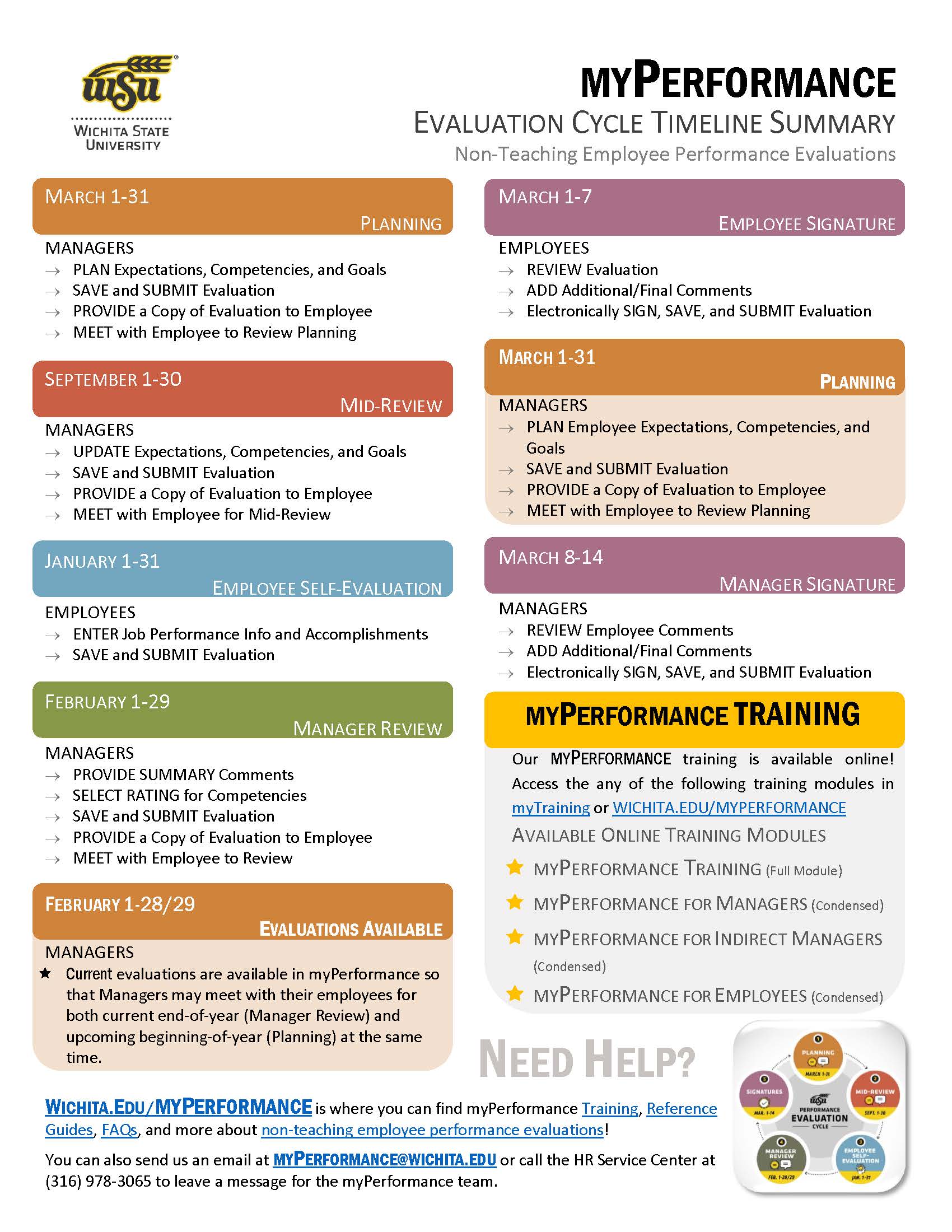
Information about the myPerformance evaluation timeline, online training, and help can be found on this flyer. Click on the button below to get your copy!
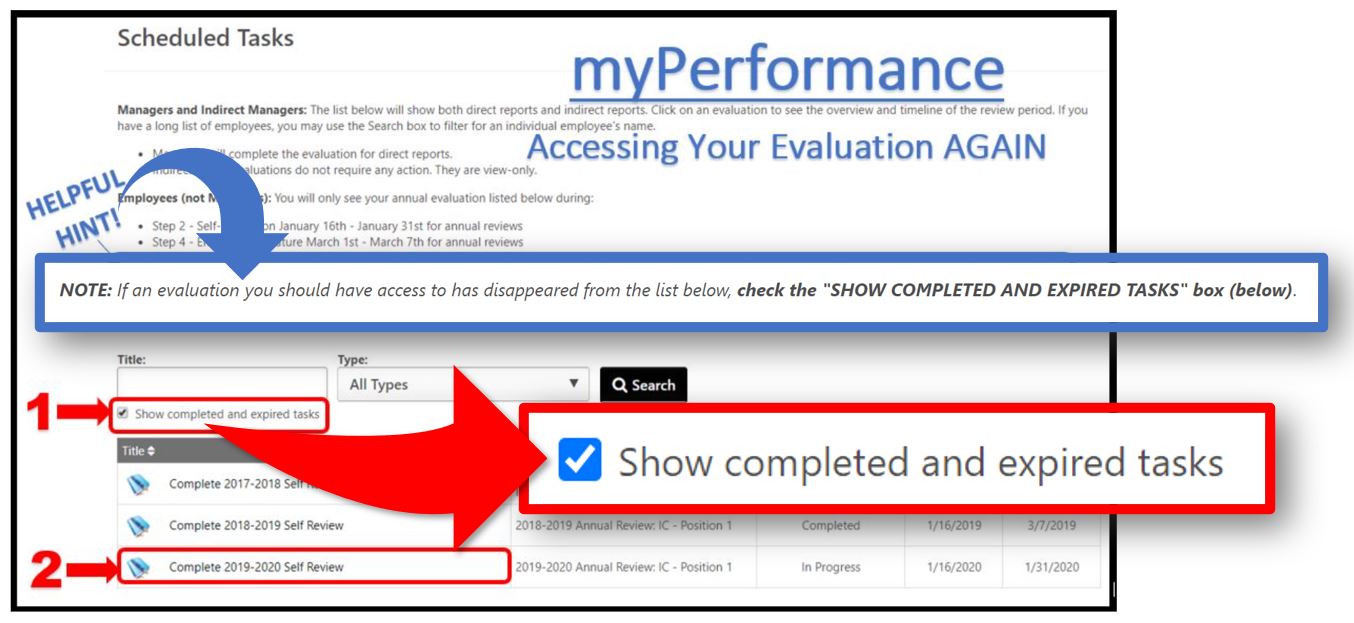
Show completed and expired tasks
"Help! My Evaluation has Disappeared!"
"How Can I Access Past Evaluations?"
These are the most common questions the myPerformance Team gets during evaluation time and 95% of the time the solution is the same for both questions...
Try this simple solution!
Checkmark the (teeny-tiny easy-to-miss) box next to the text that says, "Show completed and expired tasks"
You see, after you have accessed an evaluation for the first time, the status automatically changes from “Not Started” to “In Progress.”
Therefore, you will need to checkmark the (teeny-tiny-easy-to-miss) box that says, “Show completed and expired tasks” and then click on the Search button. Voila! You should be able to access your current and past evaluations from there.
Note to Employees:
You have access to all of your past evaluations through myPerformance (or since we started using the myPerformance system for evaluations).
During the myPerformance evaluation cycle (March 1-February 28), you may not have access to your current evaluation until the following:
- January 16-31 for Employee Self-Evaluation
- March 1-7 for Employee Signature
- Additional note: If you do not have access to your evaluation between March 1-7, it's possible that your Manager needs to Save and Submit their Manager Review.
Note to Managers:
You have acess to all of your non-teaching Direct Report evaluations in myPerformance for as long as they have been reporting to you (or since we started using the myPerformance system for evaluations).
During the current myPerformance evaluation cycle (March 1-February 28), you will not have access to your Direct Report evaluations during the following times:
- January 16-31 during Employee Self-Evaluation
- March 1-7 during Employee Signature
- If you do not have access to your Direct Report evaluations during Manager Review (between March 8-14), it's possible that your Direct Report needs to Save and Submit their Employee Signature.
SME: SP/SRAP
Updated: 1/14/2022 SRAP