


Wichita State University
WSU Frequently Asked Questions
How to request for help
Different issues are taken care of in different ways. Here is a list of some issues, and who to contact/what to do when issues arise. Contacting OneStop for technical issues not related to Blackboard will delay service.
Below is a list of issues, and what you should do for assistance:
|
Issue |
What to do |
|---|---|
| Hardware/software issues with university owned PCs, Macs, laptops, printers, etc. |
Tickets can be created using the following links: |
| Wireless issues | Contact the Help Desk at 316-978-4357, option 1, or email helpdesk@wichita.edu |
| Issues accessing Banner | Contact the Help Desk at 316-978-4357, option 1, or email helpdesk@wichita.edu |
| Help with an individual form in Banner | Contact the Help Desk at 316-978-4357, option 1, or email helpdesk@wichita.edu |
| Issues with Blackboard |
Contact Blackboard support at (316) 978-4357, option 2, or find assistance on the Blackboard Support site For assistance with course development, requesting course merges, and requesting a development shell, contact OIR: Office of Instructional Resources |
| Email issues | Contact the Help Desk. Your question may be answered here. |
| Other issues | Contact the Help Desk at 316-978-4357, option 1, or email helpdesk@wichita.edu |
| Telecommunication service request | Submit a Telecom ticket here |
How to set up myWSU account for the first time
How to connect to WSU Secure
How to access my email
An email address is generated for new faculty/staff members for their use. If you are unsure if the account exists, or if you need to make changes, contact the HelpDesk at (316) 978-4357, option 1.
To access your email, including Micosoft 365, from any computer with an internet connection follow the steps below:
- Go to http://m365.wichita.edu
- In the Sign in Window, enter your myWSUID@wichita.edu.
Click Next. - In the password box enter your myWSU password. If you have not yet set a password click here for instructions.
- Authenticate your Duo.
- Click on the Outlook icon in the left menu to access your email.
For assistance with setting up Outlook on your office PC please contact the HelpDesk, or your department's Technical Support Team.
How to set up my phone to receive my work email
How to set up an out of Office message
How to Edit a Distribution List
1. Log in to the online Exchange: http://O365.wichita.edu
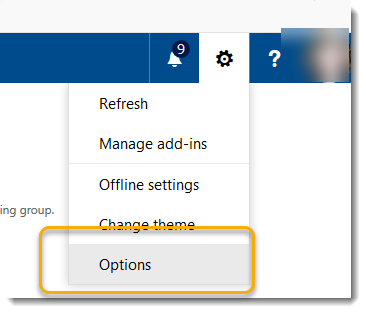
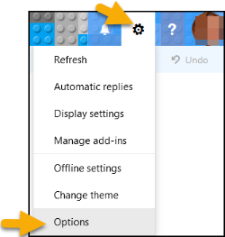
2. In the upper right, click on the gear and select Options.
3. On the left, under General, select Distribution Groups.
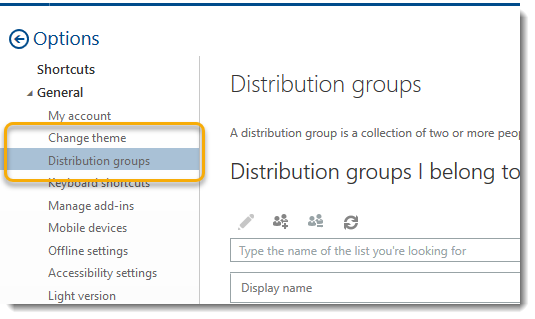
4. On the right, under Distribution Groups I Own is a list of groups you have access to alter. (If you see nothing listed, you are not listed as an owner of the group). Double click on a list to select it.
5. Select Membership on the left. Press + to add a new member.
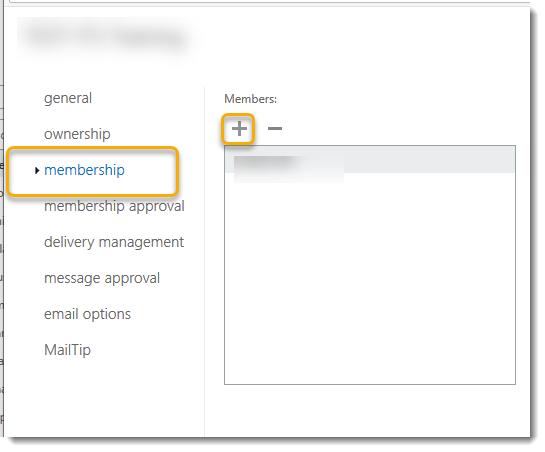
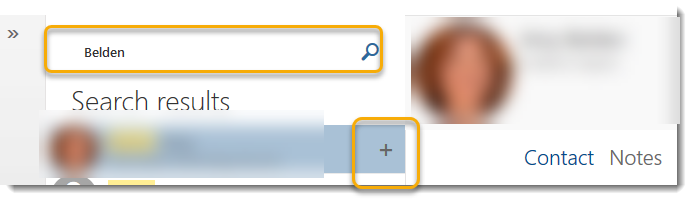
6. Search by the last name and press the + sign next to the name to add the member to your group. Press Save at the top.
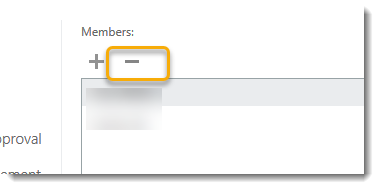
7. To remove members, select their name, and press the - sign
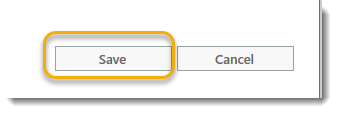
8. Press Save when finished.
Contact Groups in Outlook
A contact list is a collection of email addresses and is useful for sending email to a group of people.
Contact Groups have moved in M365.
If it looks like the option to create Contact Groups is missing in Outlook, the greyed out optin is actually a new (misleading) feature in M365 that creates a SharePoint site (not what most users would want).
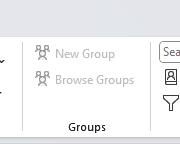
Users can still create the usual Contact Groups they are familiar with b going to Contact --> New Contact Group
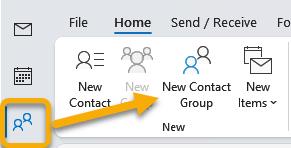
For additional information regarding Contact Groups in Outlook, please visit this link provided by Microsoft.
Outlook for Mac: Reverting to a previous version
A recent Outlook for Mac update may have changed the appearance of your Outlook screen, making it appear that your email and calendar appointments have been removed. Not to worry, your emails and appointments are safe, but it can be disconcerting to see a blank Outlook screen.
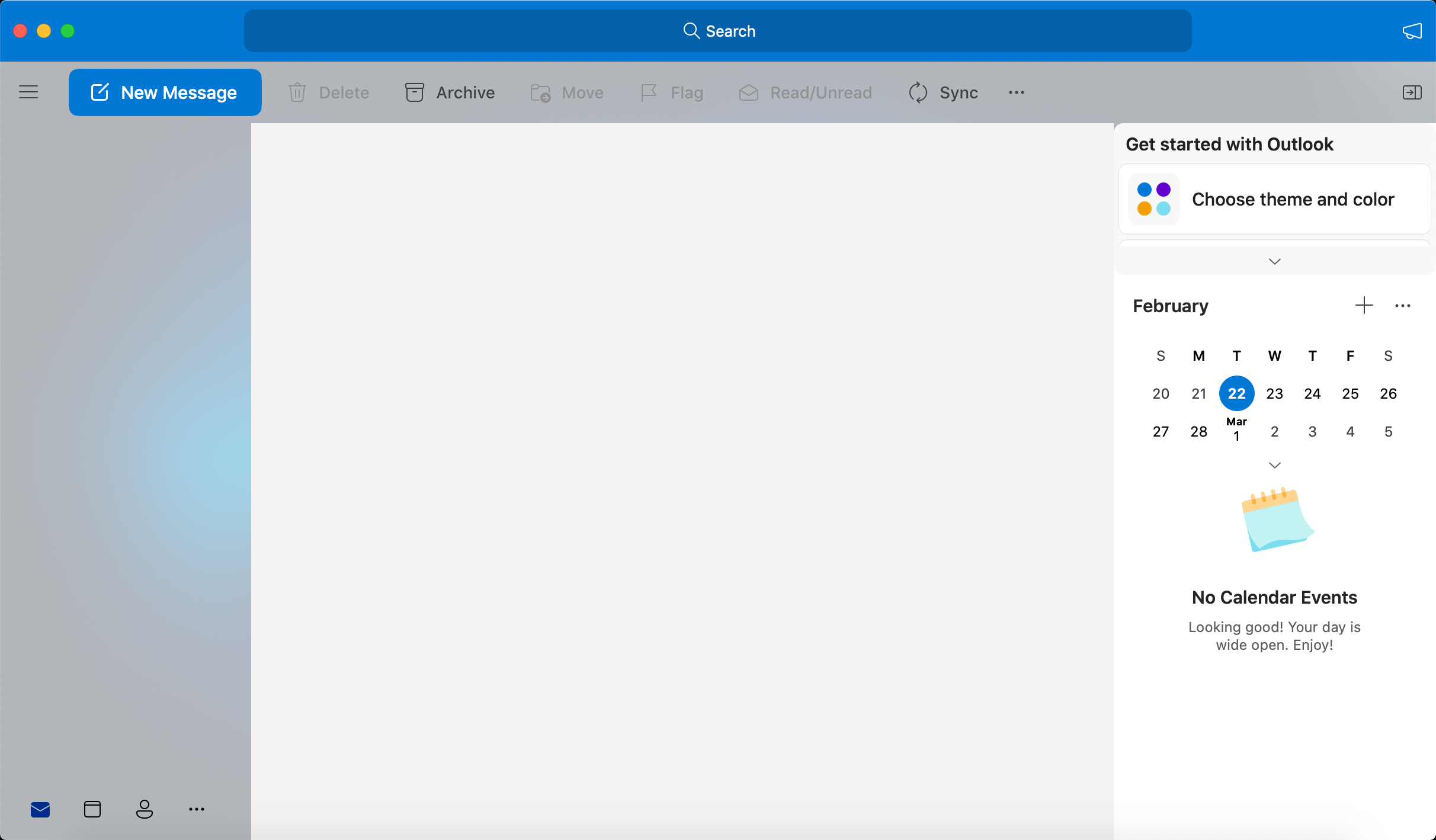
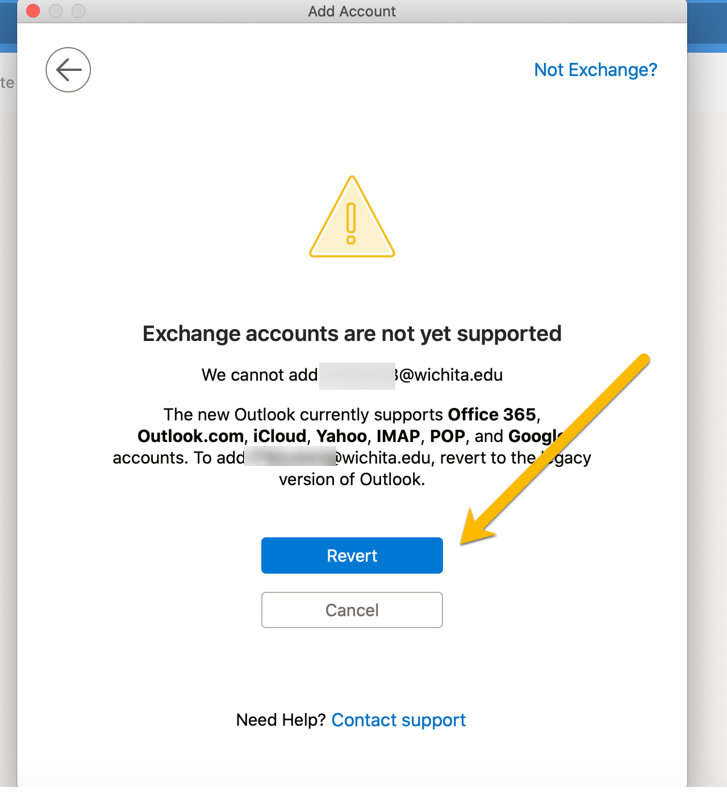
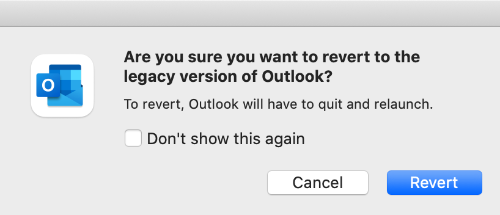
You will need to revert your Outlook application to the previous version for your content to reappear. You may be offered an option to revert via a popup menu, like this:
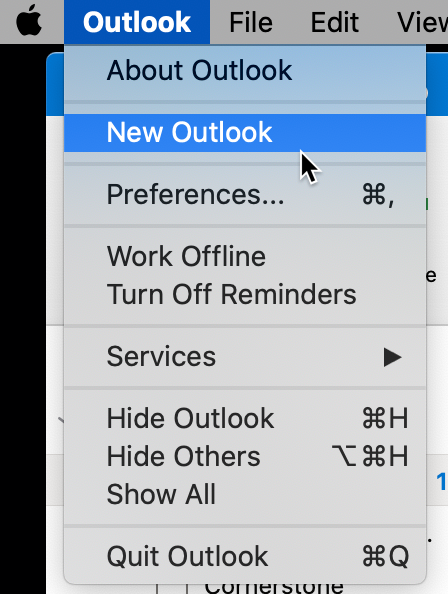
If you do not receive this prompt, you can always toggle OFF the New Outlook view by going to the Outlook dropdown at the top of the screen and deselecting New Outlook.
At the next prompt, select Revert.
You may be prompted to log in again. Your content should now reappear.
Locked out of your Account, or does Outlook log out periodically?
If you enter an incorrect password for your myWSU account too many times the system will automatically lock down your account. This is a security measure to prevent unauthorized users from accessing myWSU accounts. A message will appear indicating the account is locked.
- The current policy is: if there are 10 attempts within 10 minutes, the account will lock for 15 minutes.
Reminder:
- When changing your password, change it across ALL devices that you have logged into (iPad, mobile phone, laptop(s), desktop(s), and WSU Secure); otherwise, you run the risk of being locked out of your account. For example, when a password is changed at work, and you are also signed into your work email on a personal device at home it will attempt to sync to the mailbox on the personal device causing too many failed attempts, and locking the account.
- To help mitigate the situation, clear out devices that you are not using. To do this:
- Log into Office365 at m365.wichita.edu
- Open Outlook
- Go to the Gear Icon, Select Options
-
- Under Options, Select General > Mobile Devices
- Remove any devices no longer being used
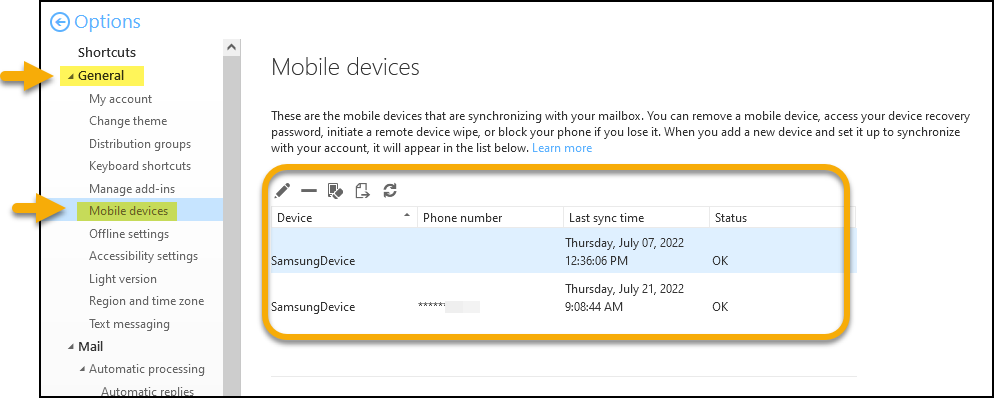
This will reduce issues with syncing that contribute to failed attempts.
How to clear browser history and use private window
A browser maintains a history of all websites accessed. Sometimes clearing the cache or browser history will allow the browser to work more efficiently. It may even help resolve problems with websites.
It is recommended that ALL users clear their cache and browsing history at least once a week. More often as issues occur or if you are accessing the internet often.
How to setup VPN
WSU's Virtual Private Network will allow users to connect to WSU computing resources over an encrypted connection. Please click the link below for information regarding VPN setup and access (information for HPC and Student users are included):.
How to report a suspicious email (Phishing Email)
Using the Phish Alert button in Outlook is an easy way to report potential phishing scam emails to the Information Security Team. Click the link below for additional details.
Guidlines for cloud storage and FERPA
For guidance on on cloud storage using WSU approved platforms that are accessed through WSU-managed accounts, please click the link below.
How to change my password over VPN (Faculty/Staff)
If you change your password while off-campus, you won't be able to log-in to your university-owned computer with your new password until you connect to the campus network, either by plugging into the wired network, using WSU Secure wifi, or the university VPN using the GlobalProtect VPN. You may still use your old MyWSU password to log into the machine until it has been updated with the new MyWSU password. Click the link below for information on how to change your password over VPN.