Wichita State University
Browser History & Cache
A browser maintains a history of all websites accessed. It also keeps copies of files or websites
Sometimes clearing the cache or browser history will allow the browser to work more efficiently. It may even help resolve problems with websites.
It is recommended that Banner users clear their cache and browsing history at least once a week. More often as issues occur or if you are accessing the internet often.
- Note: Cache or Browser History can also be set up in the Browser’s settings to clear on exit.
Cookies:
- A cookie is a file created by a web browser, at the request of a web site, which is stored on a computer
- These files typically store user-specific information such as selections in a form, shopping cart contents, or authentication data.
- Browsers will normally clear cookies that reach a certain age but clearing them manually
may solve problems with web sites or the browser.
A browser maintains a history of all websites accessed. It also keeps copies of files or websites
Trouble Accessing O365 Resouces or Training Files?
Microsoft Accounts
The WSU Resources that are accessed through the WSU O365 accounts are restricted to people who are logged in with their WSU account including several training resouces stored in SharePoint.
A browser can maintain log-in status with Microsoft accounts, sometimes for months at a time, depending on browser settings. If you are actively logged in to Microsoft with a personal account (even from a long time ago), this may be who Microsoft "thinks" you are when you try to access a file stored in SharePoint, thereby disallowing your access.
If you have received a message that you do not have permission to access a training file, try the following steps:
- Clear your browser history/cache/cookies
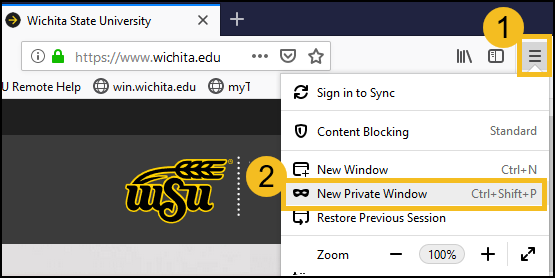
- Try utilizing Chrome's Incognito mode or a Private window in Firefox
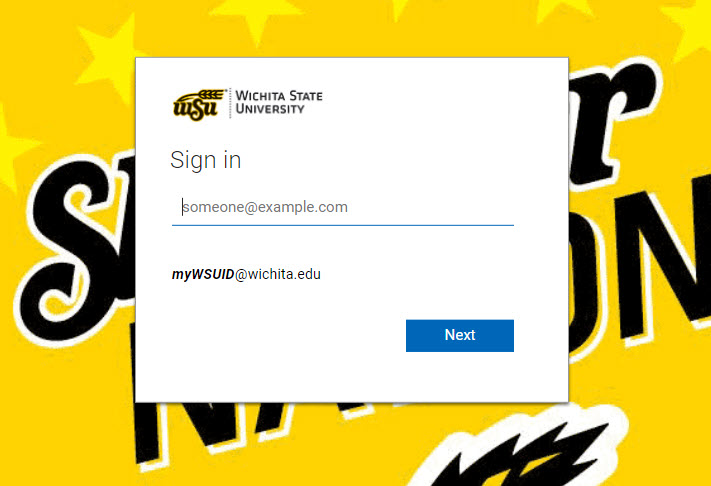
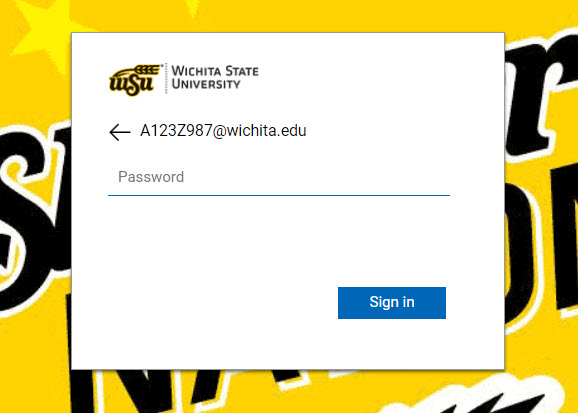
When done correctly, after these steps you should be prompted to log in to your Microsoft Account the next time you try to access the link. Be sure to follow the instructions under the log in screen, and sign in with:
- Your myWSUID@wichita.edu (e.g. A123Z987@wichita.edu):
- Followed by your myWSU password:
Clearing Browsing History & Cache/Cookies
It is recommended that Banner users clear their cache and browsing history at least once a week.
Note: Cache or Browser History can also be set up in the Browser’s settings to clear on exit.
Google Chrome
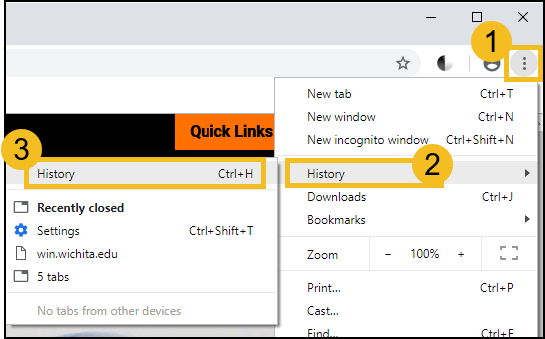
To Clear Browser History in Chrome:
- Open Menu Options in the upper right of the window.
- Select History dropdown
- Select History (keyboard shortcut: Ctrl + H)
- Select Clear Browsing Data
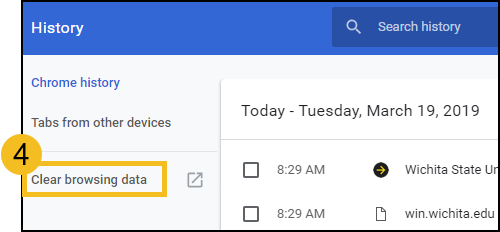
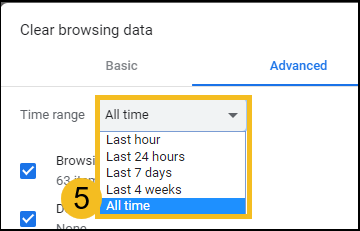
- In Clear Browsing Data window
- Click drop down for Time Range
- Select All Time
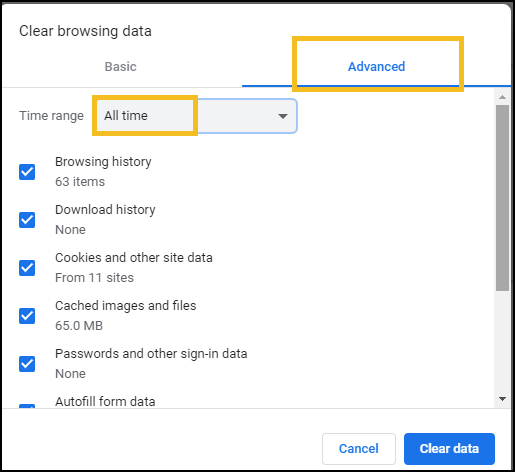
- Select the items to clear.
- To clear entire browsing data, select Advanced and select all boxes
- Verify Time Range is All Time
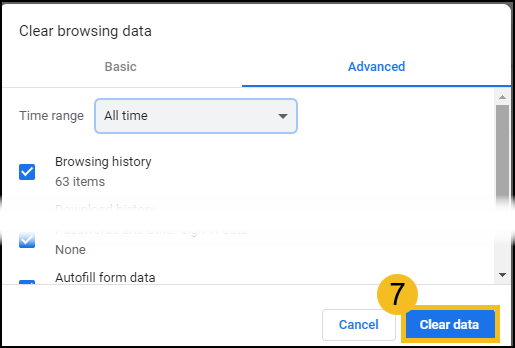
- Select Clear Data
Firefox
In Firefox, clearing the browsing history and cache is a two-part process: delete both the Cookies and the History.
- Open Menu Options in the upper right of the window.
- Select Options
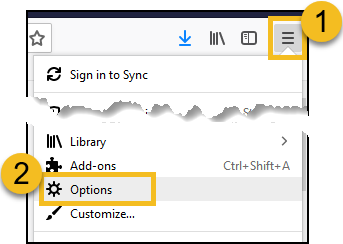
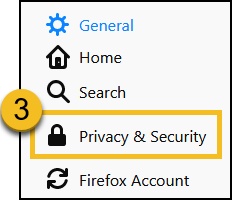
- From the left menu, Select Privacy & Security
- Under Cookies and Site Data, click Clear Data
- If wanted, check the box to delete cookies and site data when Firefox is closed
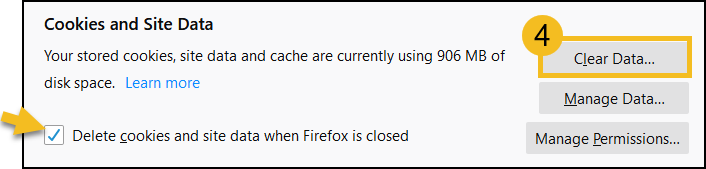
- If wanted, check the box to delete cookies and site data when Firefox is closed
- In Clear Data window, Check the boxes to delete content
- Select Clear
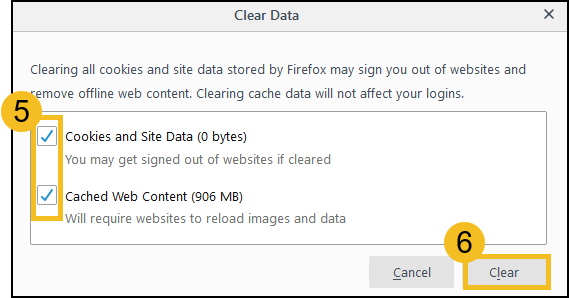
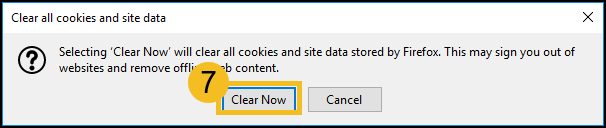
- In warning box, select Clear Now
- Under History, select Clear History

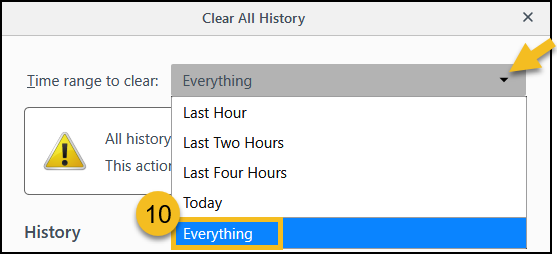
- In the Clear All History window, click the Time Range drop down and select Everything
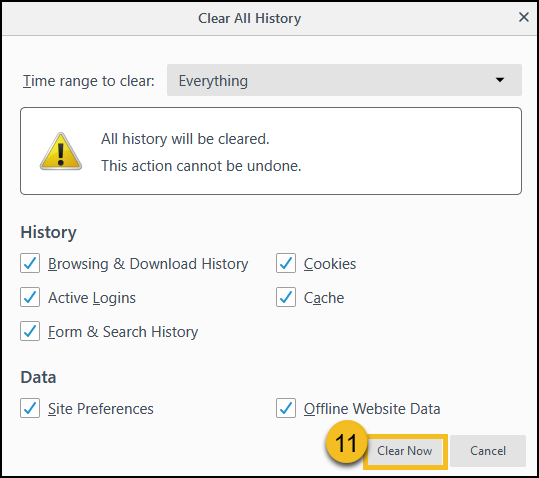
- Select the items to clear.
- To clear entire browsing data, select all boxes
- Verify Time Range is Everything
- Select Clear Now
- Close the Options Tab
Edge
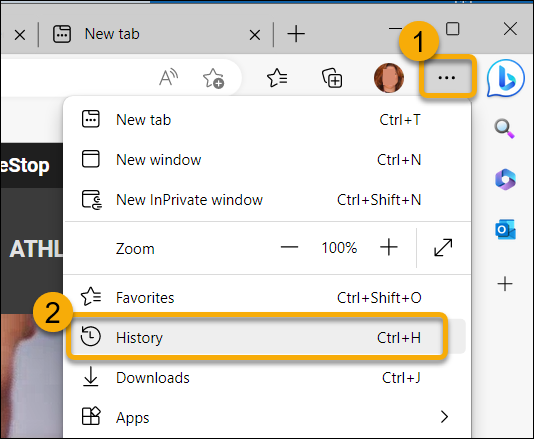
- Click the ellipsis in the upper right corner of the window to Open the Menu Options
- Select History
- In the History window, click the ellipsis in the upper right corner
- Select Clear browsing data from the History menu
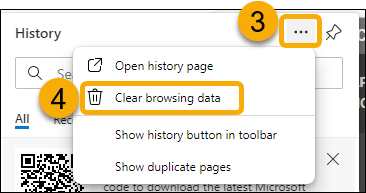
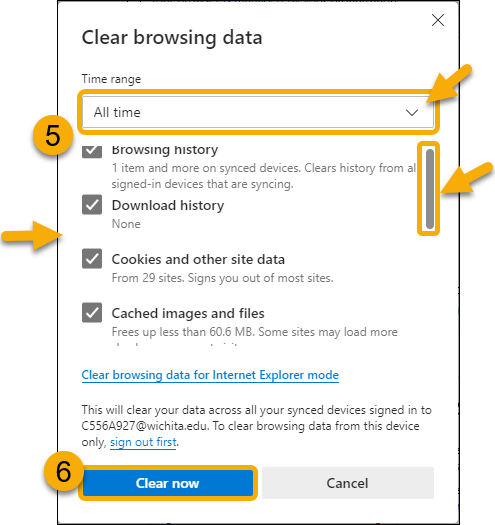
- Select the following to Clear browsing data:
- Click the drop down for Time Range and change it to "All Time"
- Check the boxes to delete content (recommended to select all the boxes)
- Use the scroll bar on the right to scroll through all options.
- Do not check Passwords to keep any saved browser password
- Click Clear now to clear history
- Close all browsers windows
Private or Incognito Window
Private or Incognito mode forces the web browser to ignore cookies and does not record browsing history.
When there is cache or browsing history issues, using a private or incognito window is recommended.
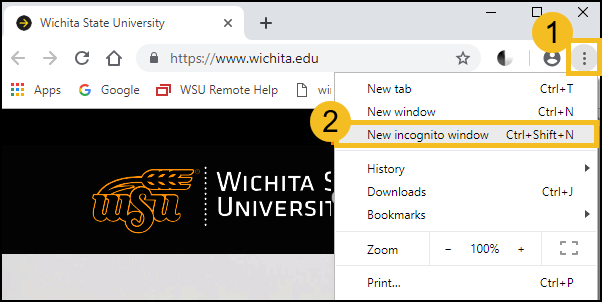
To Access Incognito Mode in Chrome
- Open Menu Options in the upper right of the window.
- Select New Incognito Window
- This will open a new browser window
- Navigate normally – access the websites you normally would use, i.e Banner 9
To Access a Private Window in Firefox
- Open Menu Options in the upper right of the window.
- Select New Private Window
- This will open a new browser window
- Navigate normally – access the websites you normally would use, i.e Banner 9