Wichita State University
Adobe Fill & Sign
There are several ways to collect signatures in Adobe documents. Here you will learn
about how to use Adobe Fill & Sign, which allows you to sign on a blank line of a
PDF that does not contain a signature form field.
Notes:
A couple notes before you begin:
- Make sure you have opened the form in Adobe Acrobat, not in Edge, Preview, or another PDF program.
- There are several ways to collect signatures in Acrobat. This guide is intended to assist with the using Fill & Sign to create your own signature field. Do you want to learn how to sign a fillable form with a signature field? Try these instructions instead: Signature Fields in Acrobat Forms
How to Use Fill & Sign
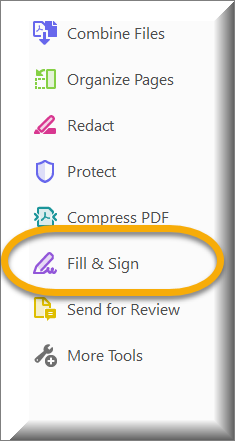
1. Select Fill & Sign from the list of tools on the right. If you don't see these tools on the right, select Tools from the menu at the upper left of the screen.
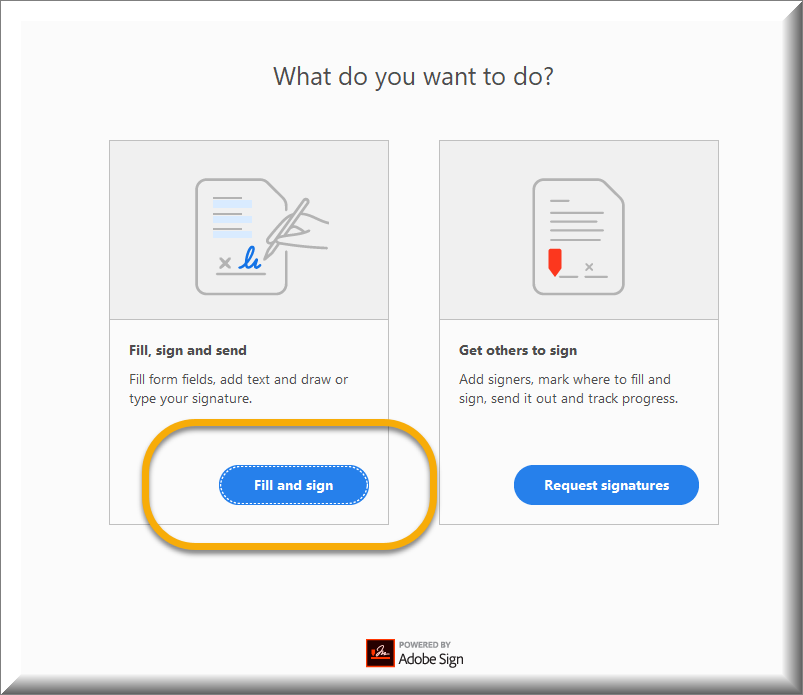
2. You will be taken to a screen that asks, "What do you want to do?" Select Fill & Sign.
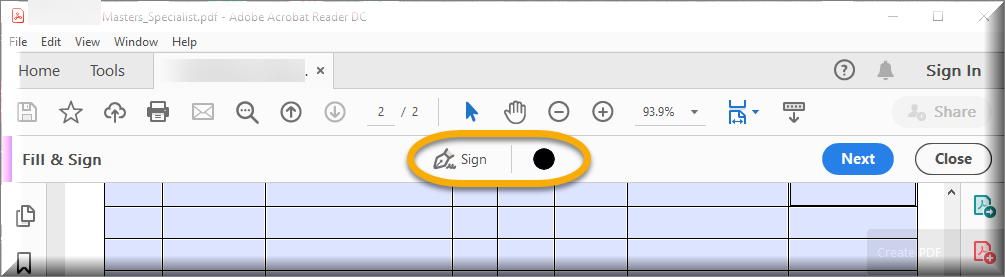
3. A toolbar will appear at the top of the document. Select Sign.
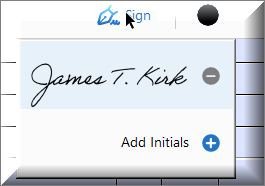
4. In the Sign dropdown, select Add Signature
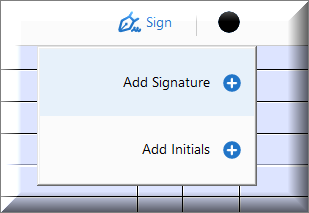
5. In the popup, you have the options to type your signature, draw your signature, or upload an image of your signature. If you do not have an existing image of your signature, most people select Type.
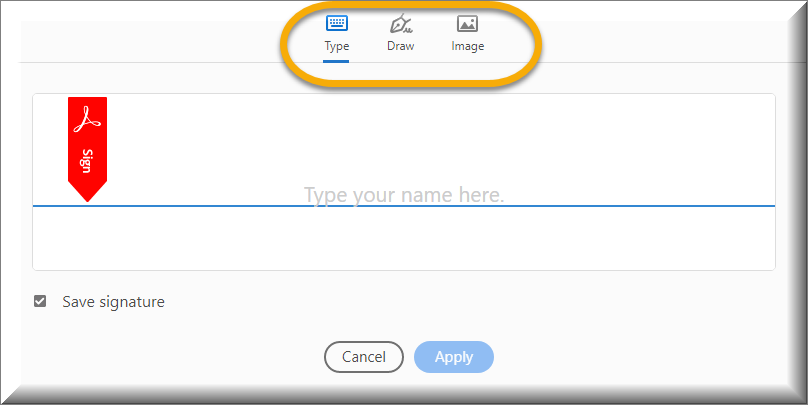
6. Once you have typed, drawn, or imported your signature, press Apply.
- Note that there is a checkbox called Save Signature, that is checked by default. This will save your signature on this computer.
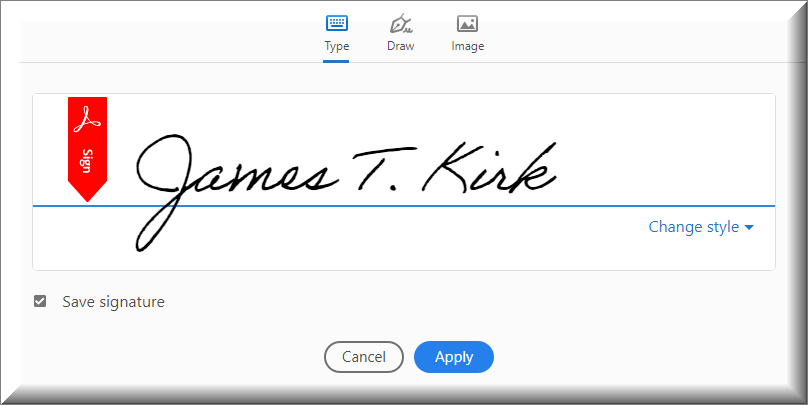
7. Acrobat will load your signature into the cursor so it can be stamped anywhere on the document.
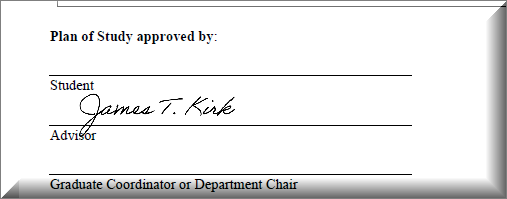
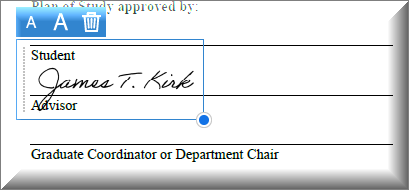
8. Click anywhere to "stamp" your signature. A blue menu will appear around your signature.
- The "A" buttons will allow you to increase or decrease the size of your signature.
- The trashcan will allow you to delete your signature and start over.
9. If you chose to save your signature (Step 6), the next time you sign a document on the same computer, Fill & Sign will have the signature available in the Sign dropdown from Step 4. This can be a time saver, as the signature will not need to be reimported or retyped.