Wichita State University
Signature Fields in Acrobat Forms
Most fields in Acrobat Fillable Forms are fairly intuitive: simply click into the field and start typing. Signature Fields, however, are a bit different. This guide will walk you through how to sign a form in Acrobat using the fillable form signature fields.
Notes:
Two notes before you begin:
- Make sure you have opened the form in Adobe Acrobat, not in Edge, Preview, or another PDF program.
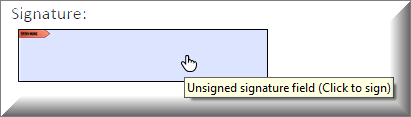
- There are several ways to collect signatures in Acrobat. This guide is intended to assist with the typical signature fields in fillable forms. They look like this:

If you are creating a signature in a PDF without a form field present, you may be interested in Adobe Fill & Sign instead.
How to Sign an Acrobat Form
Hover your mouse over the signature field, and click on top of it.
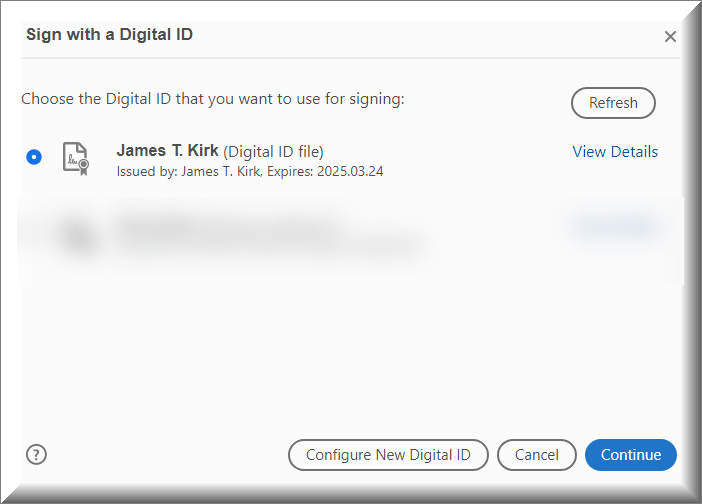
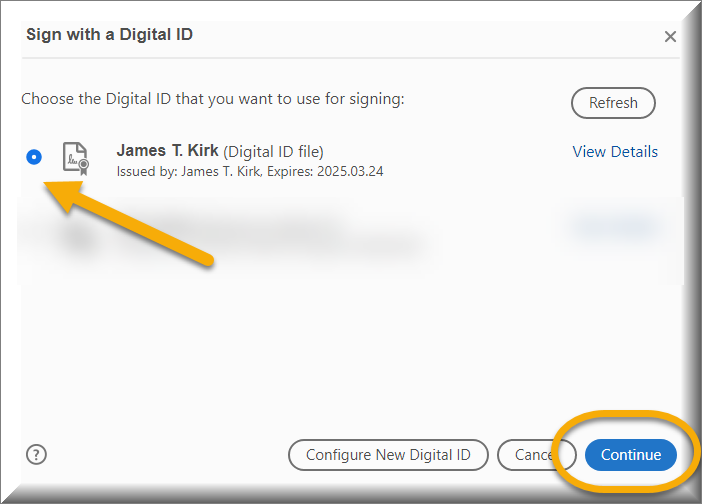
Do you see a list of IDs containing your name/information?
Create a Digital ID
Do you not see any Digital IDs to select? If not:
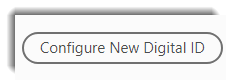
1. Press Configure New Digital ID.
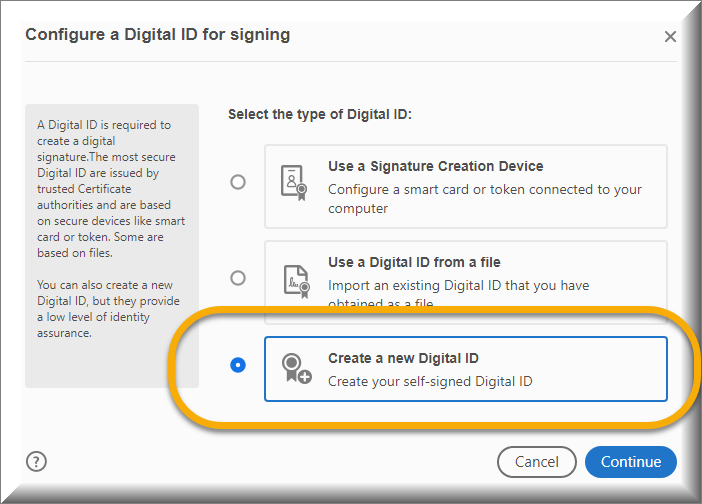
2. For Type of digital ID, select Create a new Digital ID and press Continue.
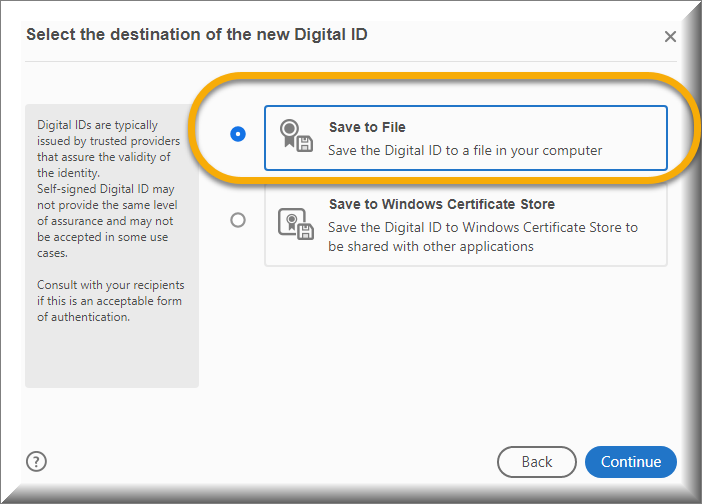
3. For Destination, select Save to File and press Continue.
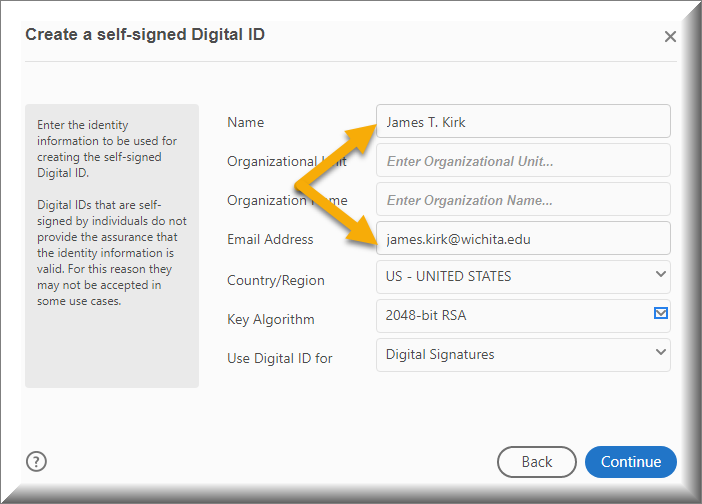
4. Create a Self-Signed Digital ID: enter your Name and Email Address. Organization is optional. Press Continue.
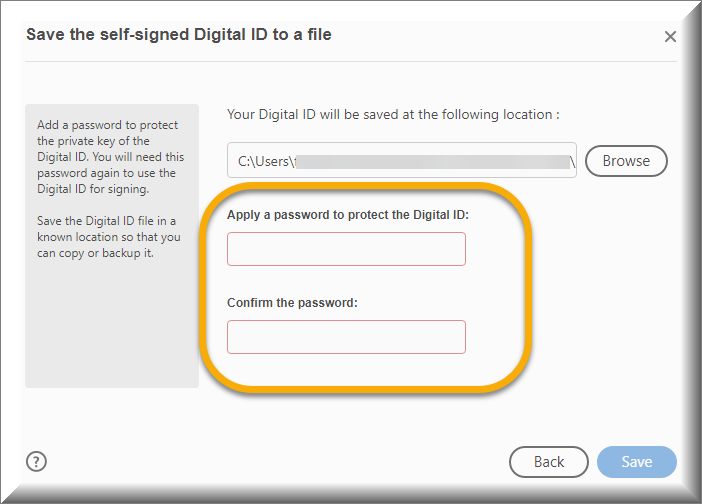
5. Create a password: apply a password and confirm it. Press Save.
Now you are ready to sign the form. Read on for how to sign.
Sign the Form with Existing Digital IDs
Do you already have digital IDs present? If so:
1. Select the correct ID, and press Continue.
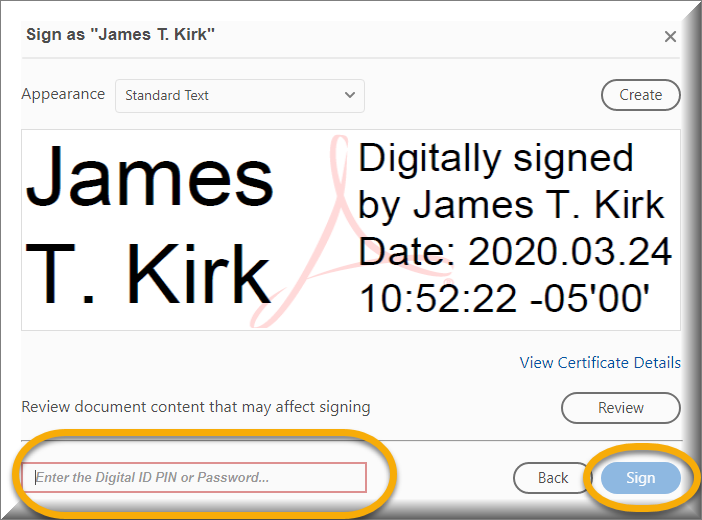
2. When prompted, enter your password, and press Sign.
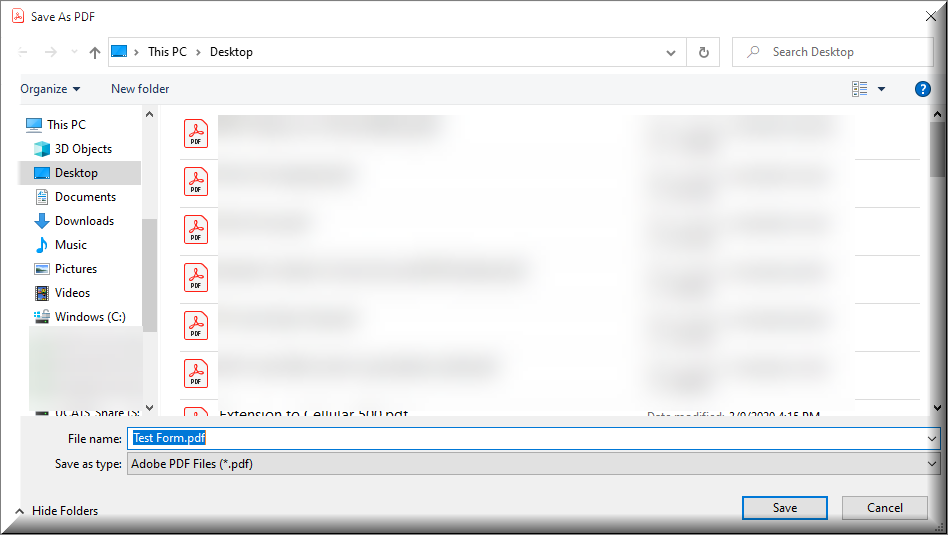
3. You may be prompted to save the form:
- File Name: You may rename the form, which would create a copy, or keep the same name, to overwrite the original.
- Location: Browse and select a location to save the file.
- Press Save.