


Wichita State University
Opentext / CX-E Voice is the new Voicemail Management Application for accessing your voicemail settings online.
WSU Employees with a @wichita.edu email account that are associated with a WSU Phone
extension are automatically set up with a Federated Voicemail Account. See the  for details.
For WSU voicemail accounts that are not federated, the Non-Federated voicemail options is available.
For example, group, partnership, or departmental voicemail extensions would be considered Non-Federated. With Non-Federated Voicemail accounts:
- Voicemails are stored in the voicemail environment and do not automatically synchronize
with an email address.
- Must be manually set up with email notification
- Once set up with email notification
- When an email is read and/or deleted, the message indicator light on the phone will remain lite and messages will need to be manually deleted
- Voicemail Messages and settings can be managed through the online platform
Document links may not work in Firefox. Scroll down to view guide information.
GUIDE CONTENTS
Setting Up Voicemail Management on the Web
How to complete the initial set up of Security Passcode and Name & Greeting Recording
To set up your voicemail online:
- Open a web browser and go to https://wpm.wichita.edu/user/login/
- Log in using the following login options:
- Username: enter phone extension number (4 digits)
- Security Code: voicemail security code or password
- For initial setup- enter the security code assigned to you
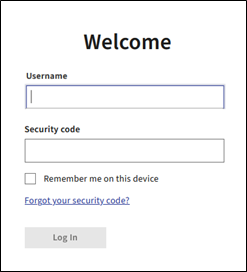
- Click Log In
- You will be prompted to set up your account, click Let’s Go
- Select Allow or Always Block on the pop up regarding notifications from Voicemail
depending on your preference.
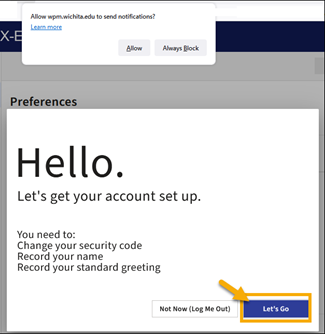
- Select Allow or Always Block on the pop up regarding notifications from Voicemail
depending on your preference.
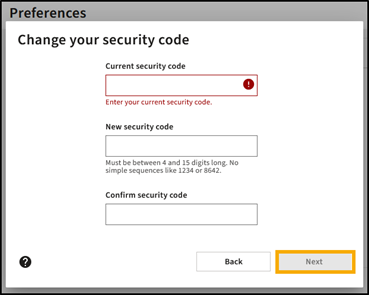
- During setup, you will be prompted to change your Security Code.
- Enter the Current Security Code (assigned to you by Telecom)
- Enter a new Security Code
- Must be between 4-15 digits long
- Confirm the new Security Code by re-enter the new code
- Click Next
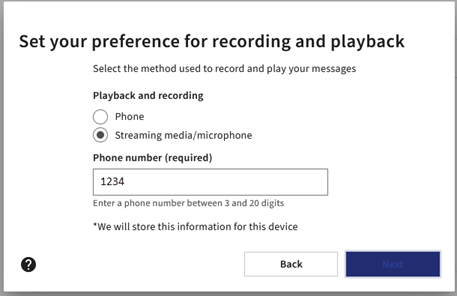
- Set Preferences for recording and playback - Select Preferences and Click Next
- You can change method used to record and play your messages by managing the settings
on this screen. By default, the phone number field will be populated with the primary
device assigned to you by your administrator.
- Phone - Allows you to record or play your messages using the phone indicated in the Phone number box.
- Streaming media / microphone - Allows you to record and play your messages through your laptop, tablet, or other Internet-connected device.
- You can change method used to record and play your messages by managing the settings
on this screen. By default, the phone number field will be populated with the primary
device assigned to you by your administrator.
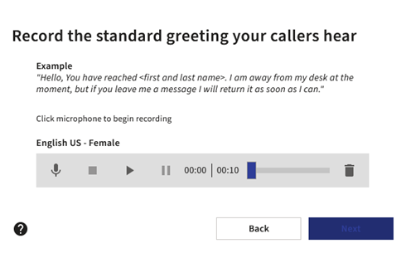
- Record you name
- Click the Microphone Icon
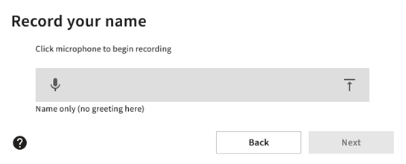
- Record your name
- Click square stop icon to stop recording
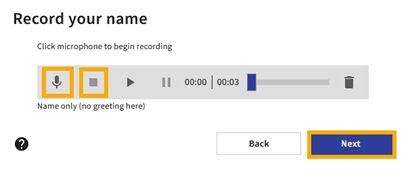
- Click the Play arrow to review the recording
- Repeat steps to re-record name
- Click Next
- Click the Microphone Icon
- Record the Standard Greeting your callers hear
- CLick the Microphone Icon
- Record your name
- Click square stop icon to stop recording
- Click the Play arrow to review the recording
- Repeat steps to re-record greeting
- Click Next
- A brief description of available features in the online platform will be listed. Click Done.
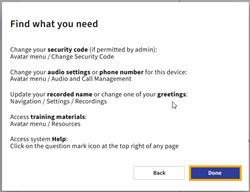
No further action is required to set up your voicemail.
- Email notifications can be setup under Notifications. Please see the next section for information regarding email notifications.
Email Notification of Voicemail Messages
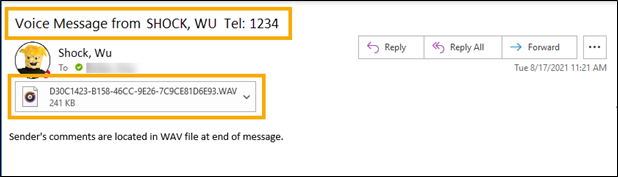
If email notification is set up in Notifications, the email address set up will receive notification when a voicemail message is left on the extension.
- The Subject line will list the name and extension of the caller
- Click on the attached Audio file to listen to the message
Accessing Voicemail Messages Online
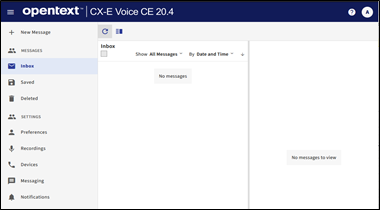
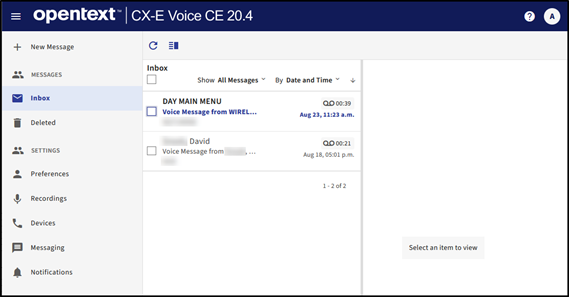
With a Non-Federated Voicemail Account, voicemail messages can be managed using the online platform. Voicemails will be received and managed in the Inbox section under Messages.
Messages: INBOX
New messages will appear in the inbox.
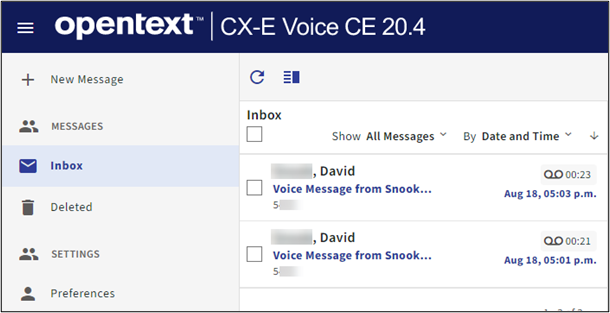
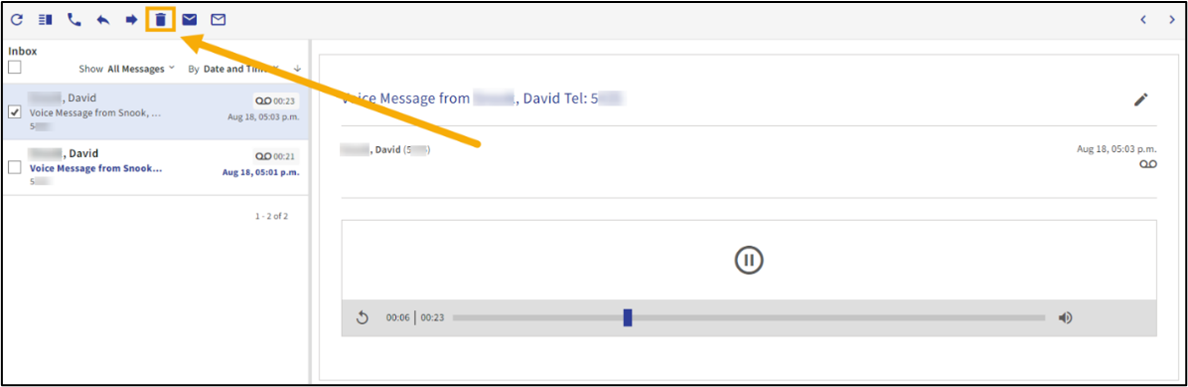
- To view a Message: Click on the message within the inbox
- Message content will be listed
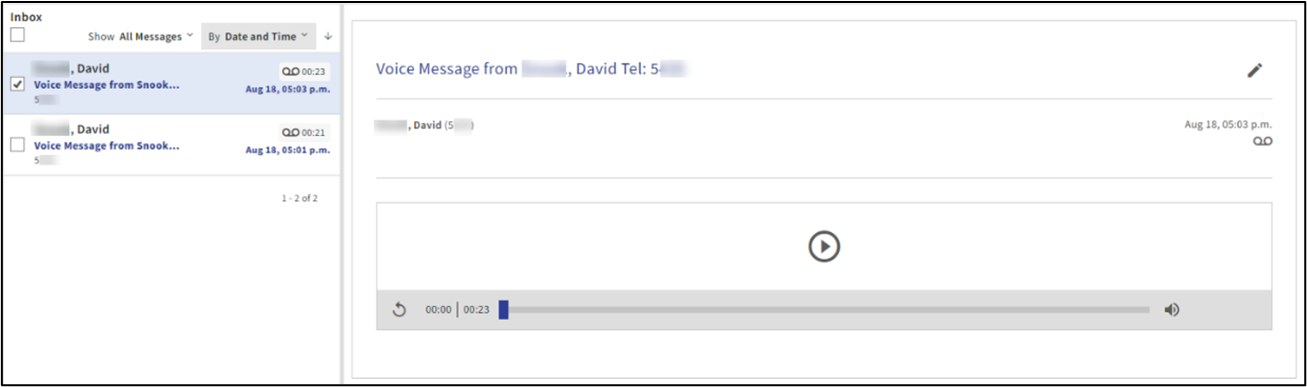
- Click on the Play button to listen to the message.
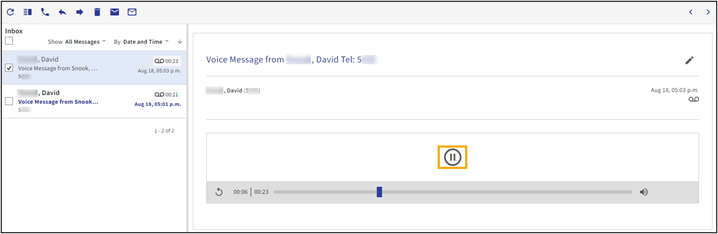
- A pause button will appear once the audio message begins
- Mute or unmute the audio using the speaker button located on the right of the slide bar.
Messages: DELETED
Deleted Messages will be listed in Deleted
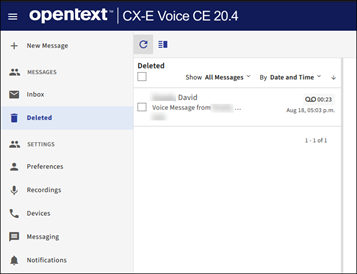
- To Delete a message, select a message in the Inbox then click trash icon
- Deleted messages will be removed, they can later be viewed in the Deleted box
Optional: Settings
The following settings are optional and can be modified or adjusted per user preferences.
Preferences - Time zone & Display Language
Set up or modify time zone, format, and language options
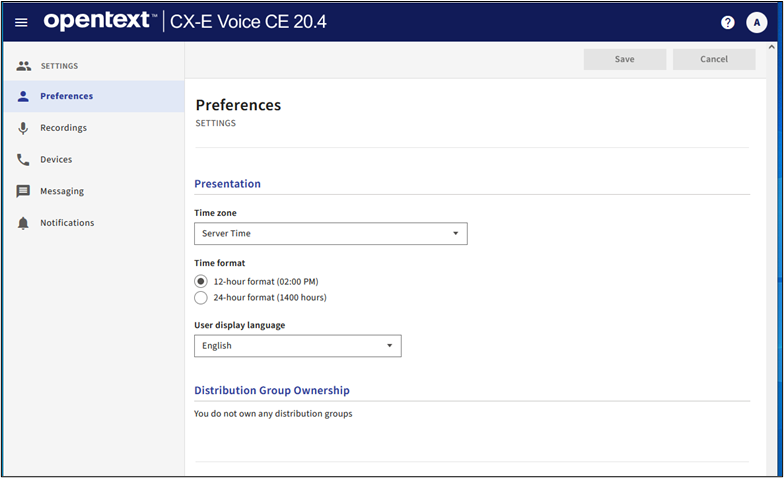
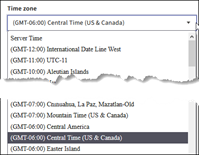
- Select the default time zone
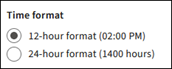
- Time Format can be set to either 12 or 24 hour format
- Select the User display language
Save after selecting preferred preferences.
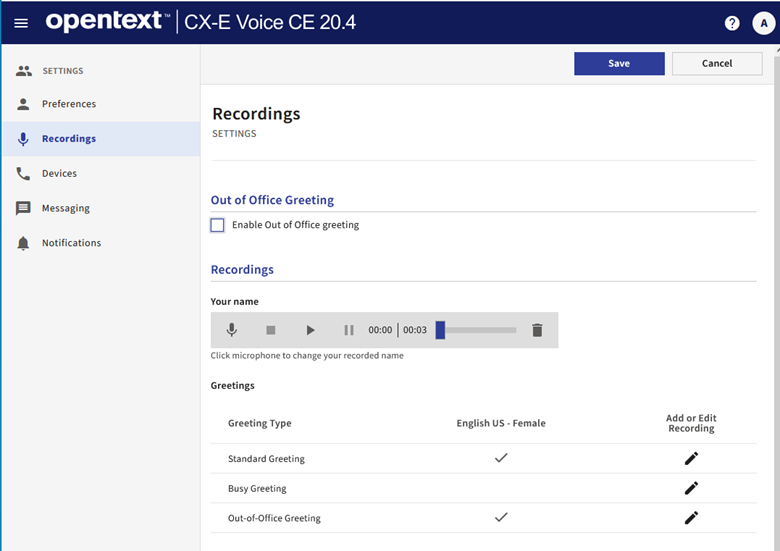
Recordings
Modify or enable Recorded Greetings for Standard, Busy, or Out of Office
- Enable Out of Office Greeting
- Check to enable once Out of Office greeting is recorded
- Recordings – Type of Greetings: Standard, Busy, or Out of Office
- Click Pencil to Record or Edit Greeting
- Click the Microphone Icon
- Record your name
- Click square stop icon to stop recording
- Click the Play arrow to review the recording
- Repeat steps to re-record greeting
- Click Save
- Click Pencil to Record or Edit Greeting
Devices
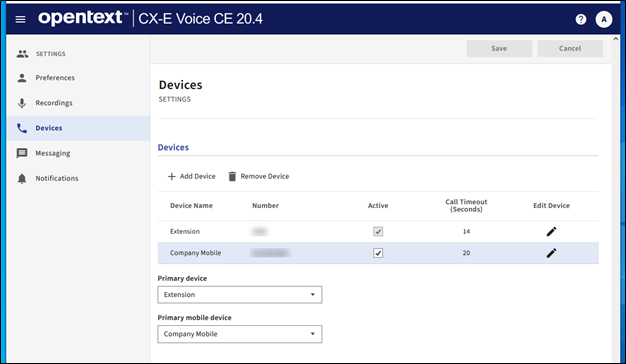
On the Devices page you can add or edit your devices and set the Primary device and the Primary mobile device if your administrator grants permission and provisions your account.
The default WSU Extension number cannot be changed or removed.
- Primary device - Default setting is Extension. There can be only one primary device for the mailbox. This is the device to which the system attempts to transfer calls. When callers use the automated attendant to transfer to a user, they system always attempts a transfer to the primary device, regardless of which number the caller dialed.
- Primary mobile device - This number designates the device as the user's primary mobile device. Only one device can be designated as a primary mobile device.
Note: You can select a single device as both the primary and primary mobile device.
Add a New Device
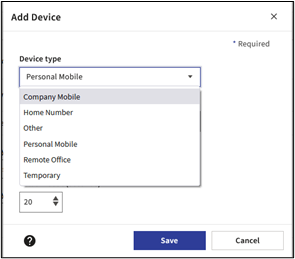
- Select Add Device
- Device Type: select from the available options
- Enter Device number and select Activate this number check box
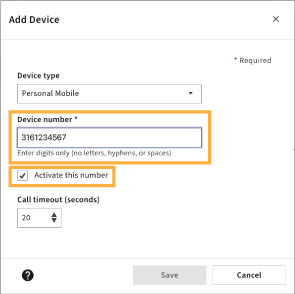
- Set the Call timeout (seconds) using the up or down arrows or enter a value with a minimum value of 5
and maximum value of 60.
- Call Timeout (seconds) - The Call Timeout default values vary by device type. Use the up/down arrows to change the Call Timeout from the current default setting. The call timeout parameter instructs the system how long to ring (in seconds) the selected device before considering it a RNA (ring no answer) condition. The timer starts when ringback is detected.
- Select Save
Messaging
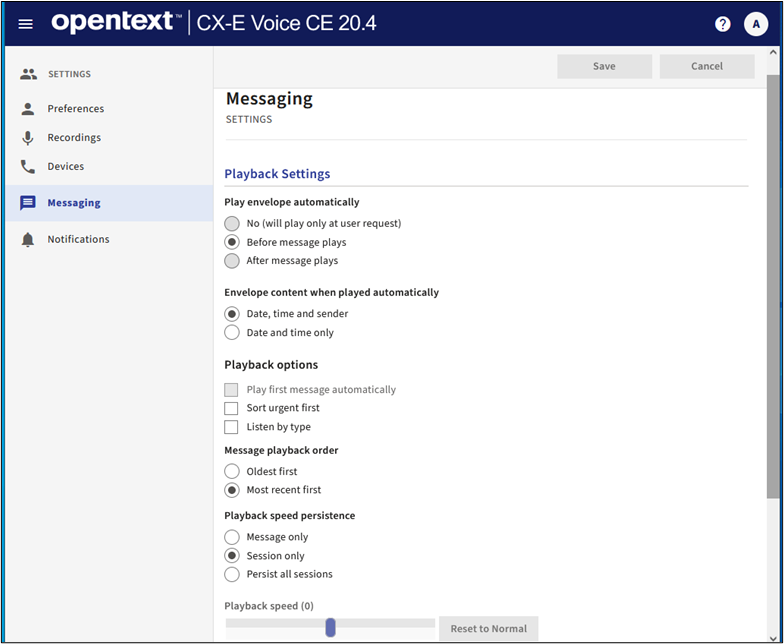
On the Messaging page you can configure and manage how the system plays the message envelope information and sorts your messages.
- The message envelope contains the sender’s information. Depending on your settings, it can include the sender’s name, date and time of the message.
- Playback options provide you with choices to sort by urgency, type or recency. You can also set your message playback speed by message or session.
After you choose your setting options, select Save to save your choices. To leave the page without saving and clear your choices, select Cancel.
Notifications
Email Notification
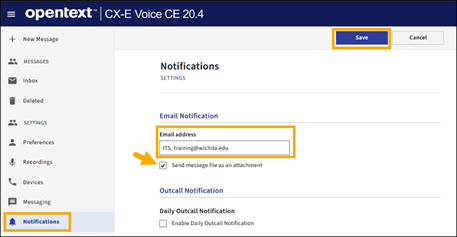
Set up an email address to be used to as a notification tool for when new messages come in. The email message will include:
- Name and extension of the caller
- Audio file of the message
To set up Email Notification:
- Enter the Email Address to receive the notification.
- Check “Send message file as an attachment” to include the message audio file in the email notification.
- Click Save.
Outcall Notification
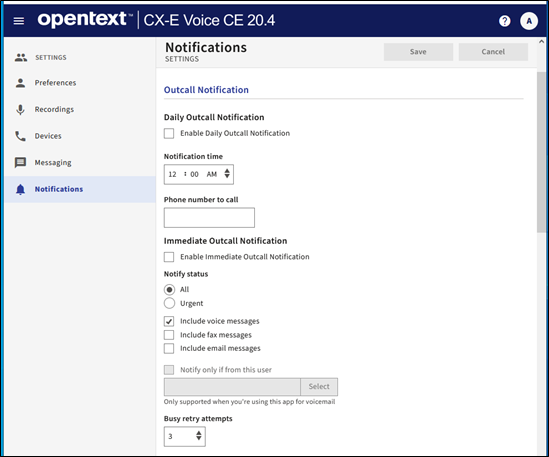
The Outcall Notification feature allows you to configure whether, and when, the system notifies you that new messages have arrived. You can also define your message notification delivery options. The Outcall Notification feature can contact regular phone numbers, digital pagers, PIN-based pagers, and radio pagers.
When your mailbox receives a message, the system determines whether to notify you based on the message type, message sender, and time of day you specify. If the message meets your requirements, then the Outcall Notification feature tries to notify you of the message by calling the first telephone number on your personal call list.
Contact Information
- Telecommunications: (316) 978-3535 or telecomservices@wichita.edu
- Training & Support: (316) 978-5800 or ITS_Training@wichita.edu
- Password Assistance: Technology Help Desk: (316) 978-HELP or helpdesk@wichita.edu