


Wichita State University
Creating a Permanent Course from an Experimental Course
This is for when you want to take an experimental course (i.e. a special topics course, a lettered course) and make it a permanent course.
Accessing the Dashboard
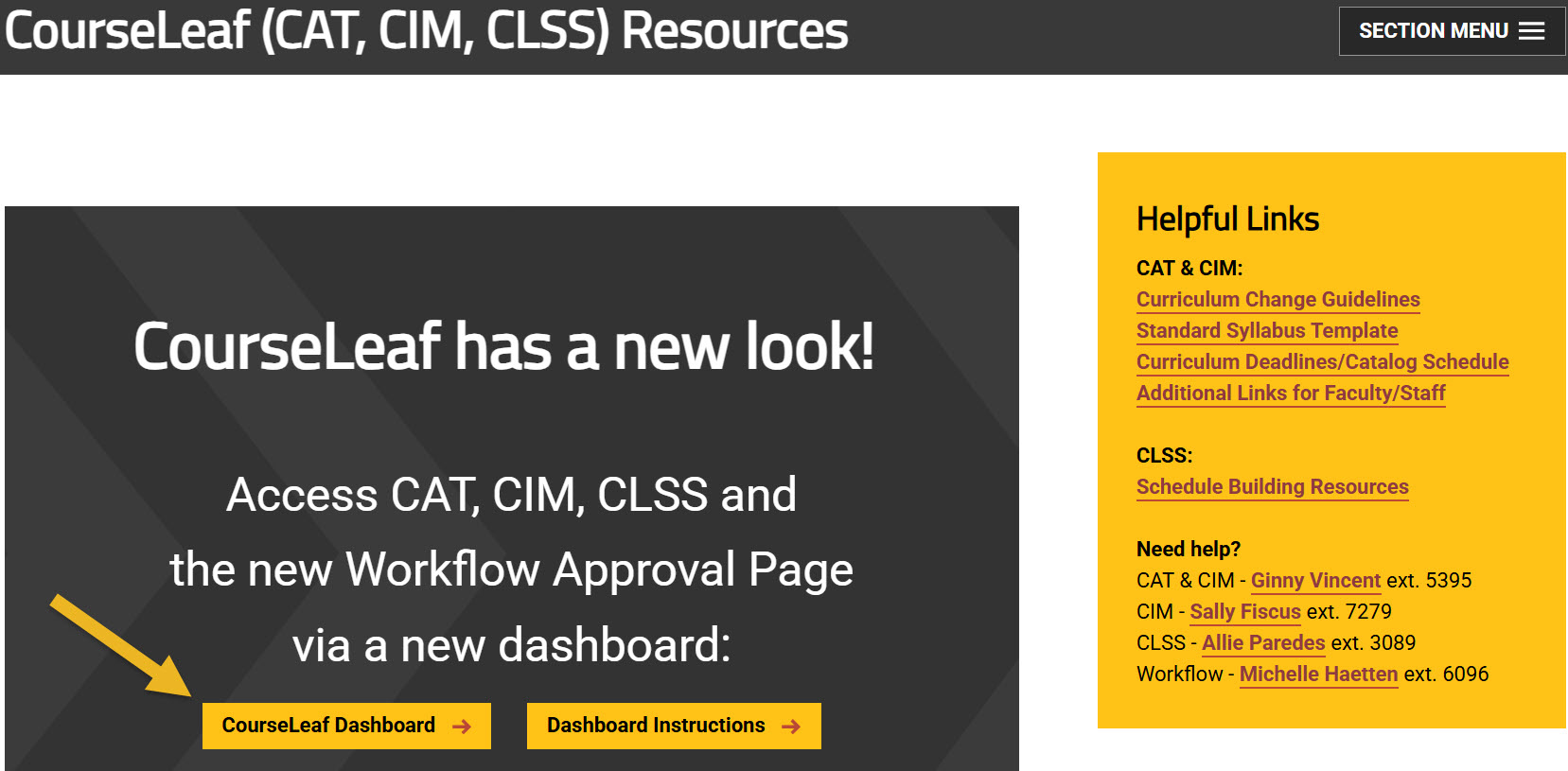
Using any web browser except Internet Explorer, go to the CourseLeaf (CAT, CIM, CLSS) Resources page (https://wichita.edu/courseleaf) and click the gold CourseLeaf Dashboard button link:
Accessing Course Inventory Management
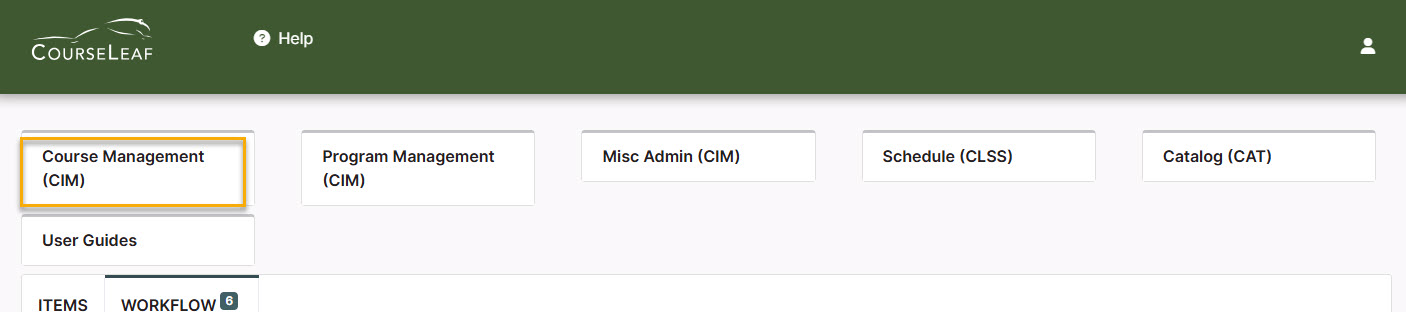
Once in the Dashboard, click on the Course Management (CIM) Module Card to be taken to the Course Inventory Management system.
Creating a Permanent Course from an Eperimental Course Steps
Step 1: Finding Course to Edit
In the Course Inventory Management system, search for the experimental course you want to make permanent. In the search field, type in the subject and number of the course (i.e. AE 460A) or you can search by the course title. You can use asterisks to search for all courses that contain specific words in the course code or title.
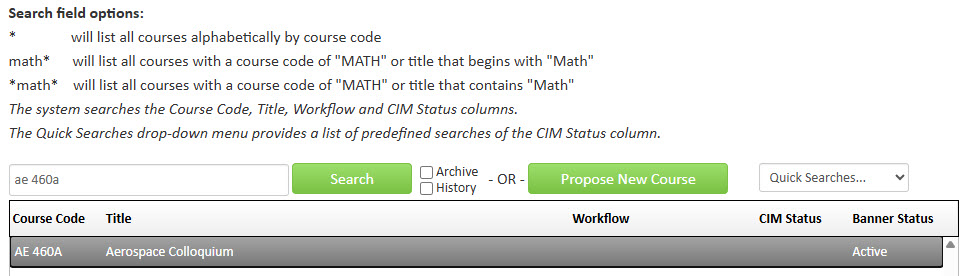
Once you have found the course you wish to edit, click on it to select it and then
click on the green ‘Edit Course’ button. This will open a separate window for the course proposal.
Step 2: Contact and Action Information
Fill out the contact information with the faculty member that can answer questions about this course. (Administrative assistants may be the one creating the proposal but the faculty member that requested this should be listed as the contact person.)
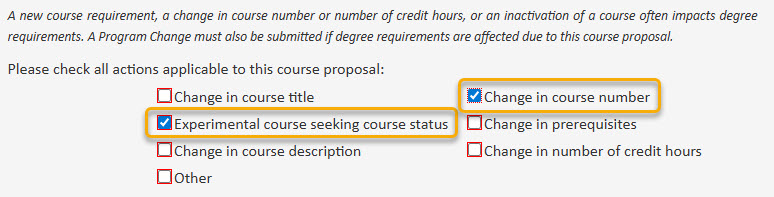
Check the ‘Experimental course seeking course status’ option AND the ‘Change in course number’ option under applicable actions:
Please Note: If the experimental course you are editing is listed on any programs and/or as a prerequisite for another course, then those programs and/or courses will need to be updated to reflect the new permanent course number and submitted to workflow as well.
Helpful Information as you move through the form:
- Answers provided on this form affect the electronic workflow approval process. For example, checking the box for ‘New Course’ starts a different workflow than checking the box for ‘New Letter under Approved Root Course’. In addition, the workflow is constantly changing as you specify/change information. For example, selecting ‘Yes’ for ‘Does this course have a service-learning component’ adds the Service-Learning Coordinator to the approval process.
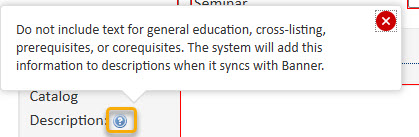
- Now that you are inside the proposal form the blue question marks represent WSU-specific
help:
- If you start a proposal but can’t finish it right now simply scroll to the bottom
of the form and click the ‘Save Changes’ button. When you are ready to return to this proposal you can use the same links
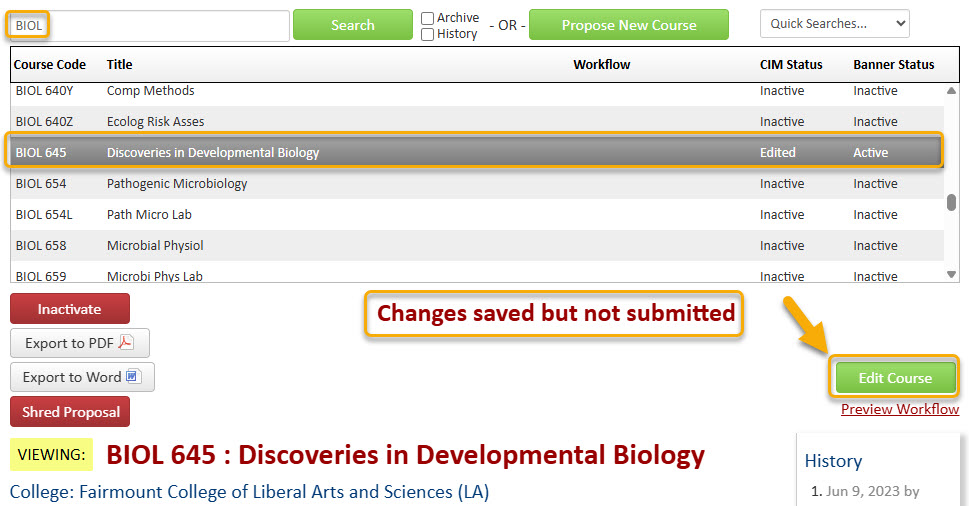
as above to access CIM. Then, search for the course, select it, and click the ‘Edit Course’ button:
Step 3: Course Information
Effective Term – Select a term for the change in course numbers. Please Note: Course changes can only be made for future terms where sections of the course do not already exist.
To make the course a permanent course, you will need to enter a new Course Number. You cannot simply remove the letter from the number.

If you do not know what course numbers are available, click on the grey ‘Course Numbers in Use’ button after you fill in the Subject field.

Or fill in the Course Number field with the number of the desired course level (1, 2, 3, etc.) and then add x’s after that. For example, type in 4XX if you are wanting to create a 400-level course.

Most of the required fields on the form should already be filled out on the proposal. Review all of the information and make any edits as needed.
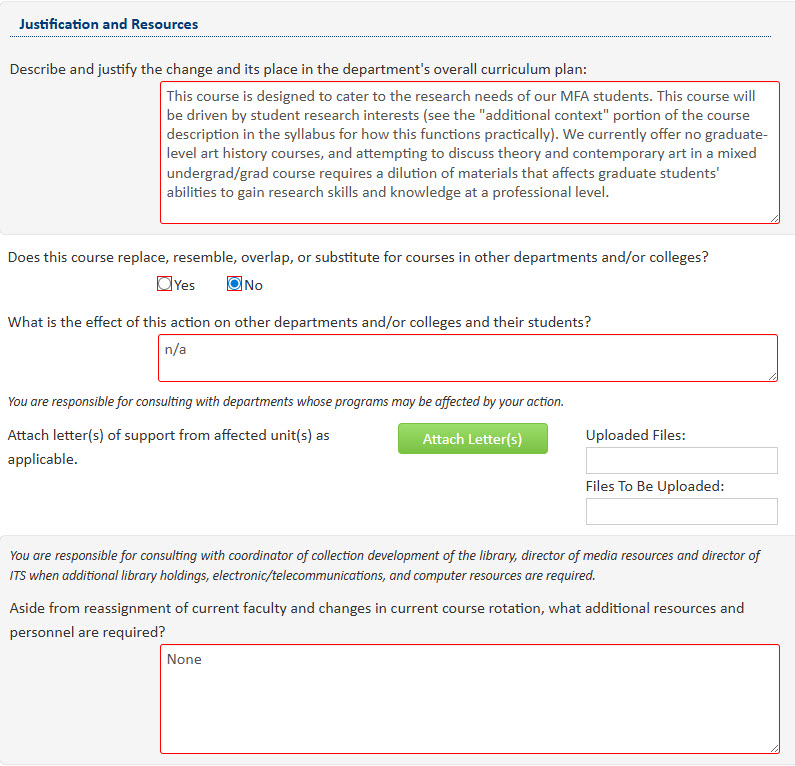
The Justification and Resources section will not be filled out. And so, you will need to explain why the course is being created as a permanent course and answer the questions as to how this course may affect other departments/colleges, faculty, and/or resources. Also, if any letter(s) of support are needed, attach them here.
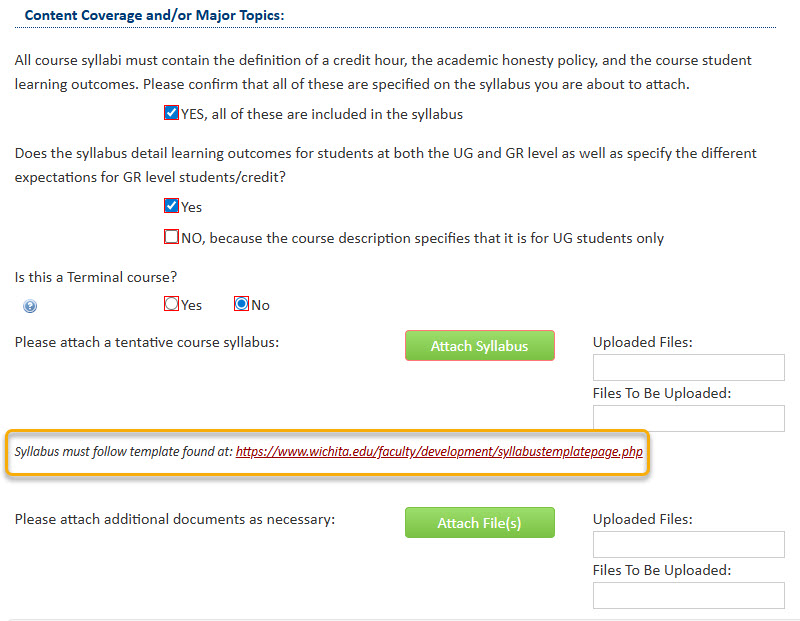
You will also need to attach an updated syllabus that follows the standard syllabus template. Please Note: The question concerning UG and GR level expectations will only appear on the form if the course number is 500-699. The Terminal course question will only appear on the form if the proposed course number is 500+.
Step 4: Start Workflow
Once you have reviewed, updated, and filled out the entire course proposal form, you will want to start the proposal through the electronic workflow approval process by clicking the green ‘Start Workflow’ button.
