Wichita State University
Welcome Guests
Greetings guests, and welcome to your WSU Team! Take a look at the instructions below for more information about joining your Team in our organization.
If you run into any issues, please reach out to the Technology Help Desk at (316) 978 4357. option 1.
Important: Private Browsing Window
Before you get started accepting the invitation and joining your team, we strongly recommend that you open your email and access the Team link in a private browsing window.
Private browsing windows work slightly differently from browser to browser, but here are some instructions for Edge, Chrome, and Safari to get you started.
Instructions: Accepting the Invitation
Accepting the invitation and joining your team has three main steps. Not to worry, you won't have to do this every time you access your Team, just the first time you are added to a Team at WSU.
Step 1: Email Link and Verification
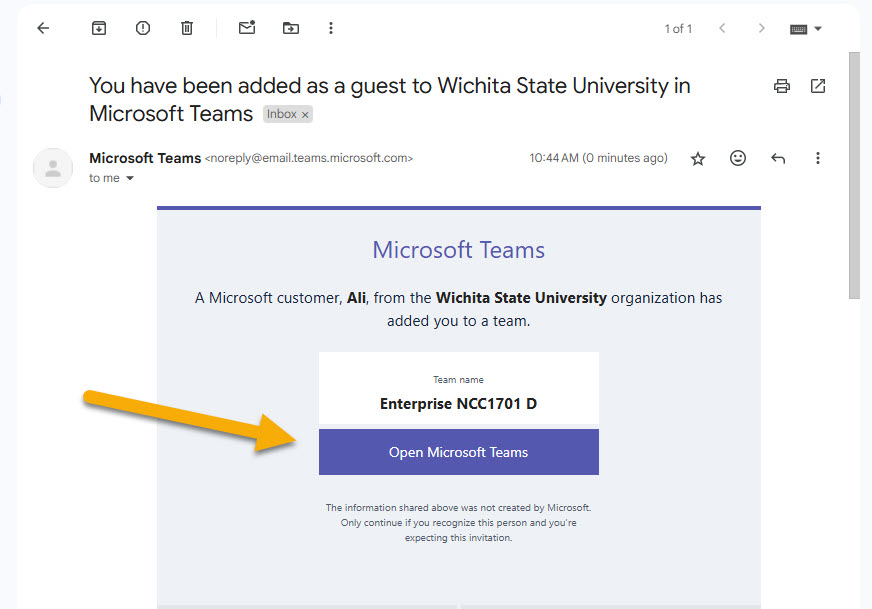
You will receive an email that contains a link to your team.
A. Click on the Team link in your email. Be sure that you are opening this link in a private browsing window.
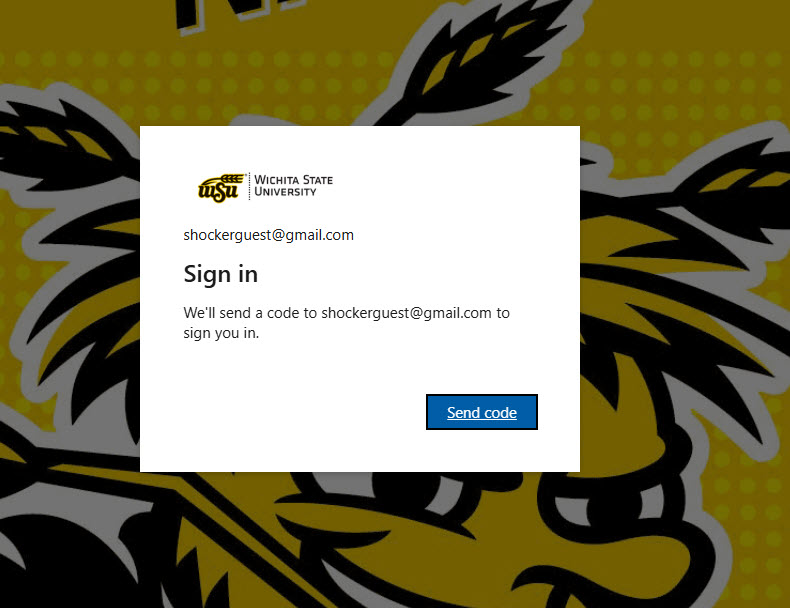
B. The link will take you to a page prompting you to request a code. Select Send code.
C. Check your email for your verification code.
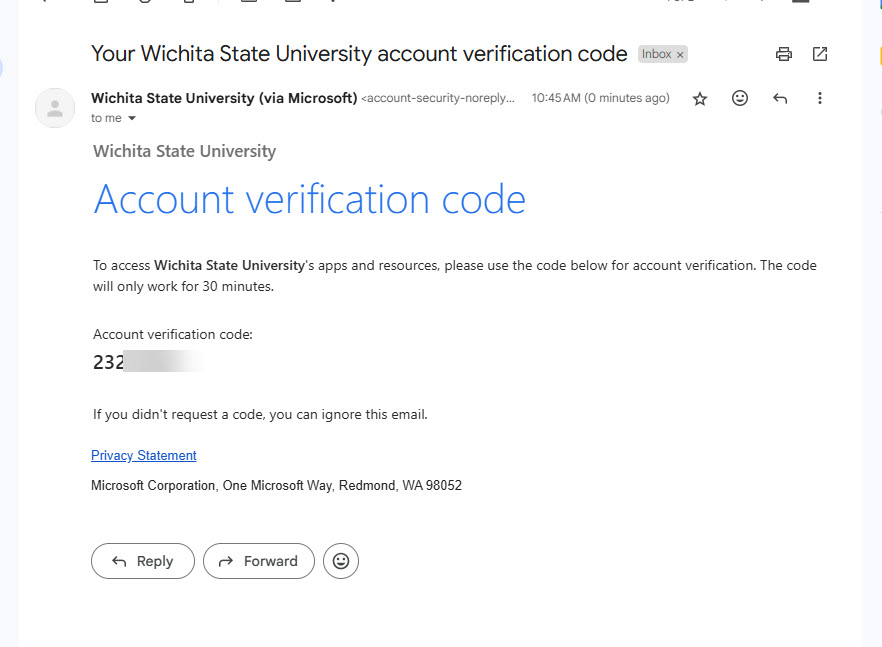
D. Return to your browser and enter the code.
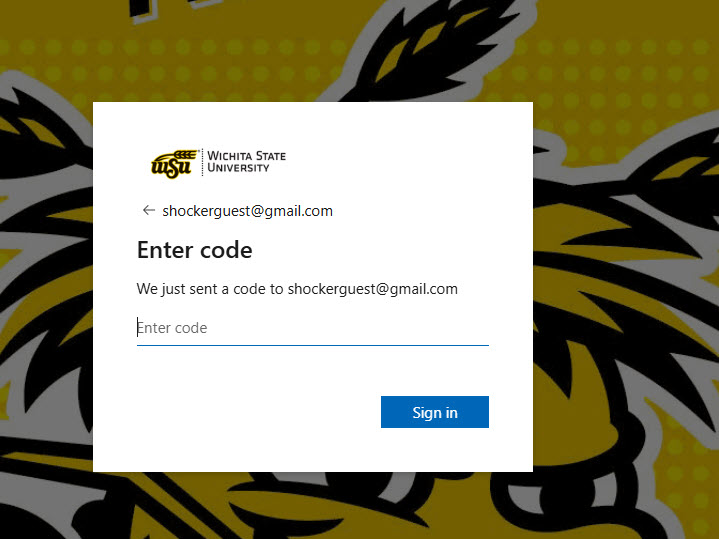
E. You will be taken to a permissions screen. If you agree, click Accept.
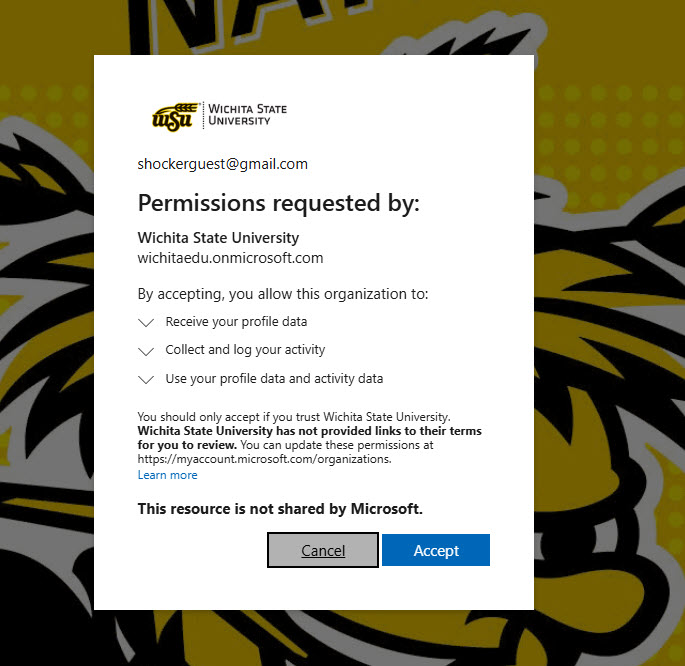
Step 2: Multifactor Authentication
The next steps will guide you through setting up multifactor authentication.
A. You will be taken to a popup titled More information required. Click Next.
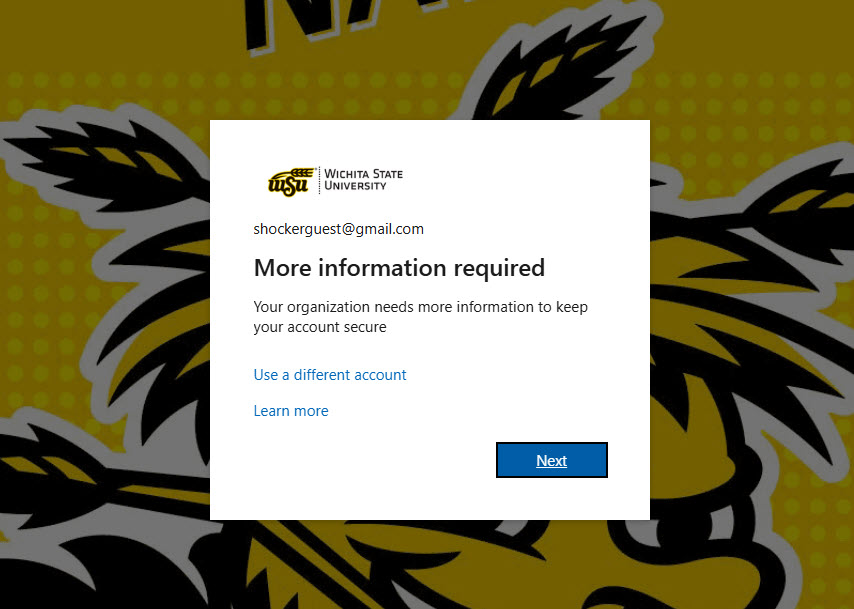
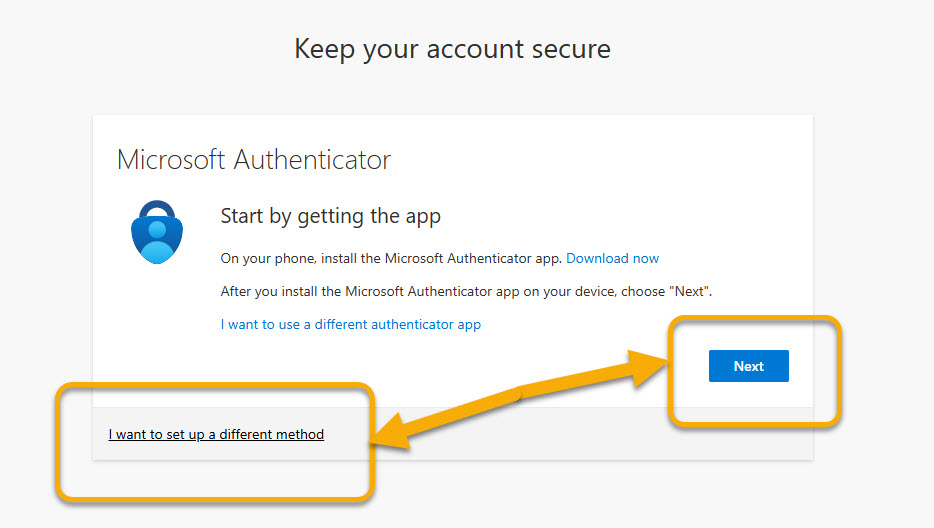
B. You will be taken to a Microsoft Authenticator prompt.
- If you are already using Microsoft Authenticator, you can click next to authenticate
- If you are not using Authenticator and do not want to set up an account, select I want to set up a different method to see additional options, like the ability to authenticate from your phone.
- In subsequent instructions, we will demonstrate how set up via phone as a "different method."
C. To use your phone to authenticate, select Phone.
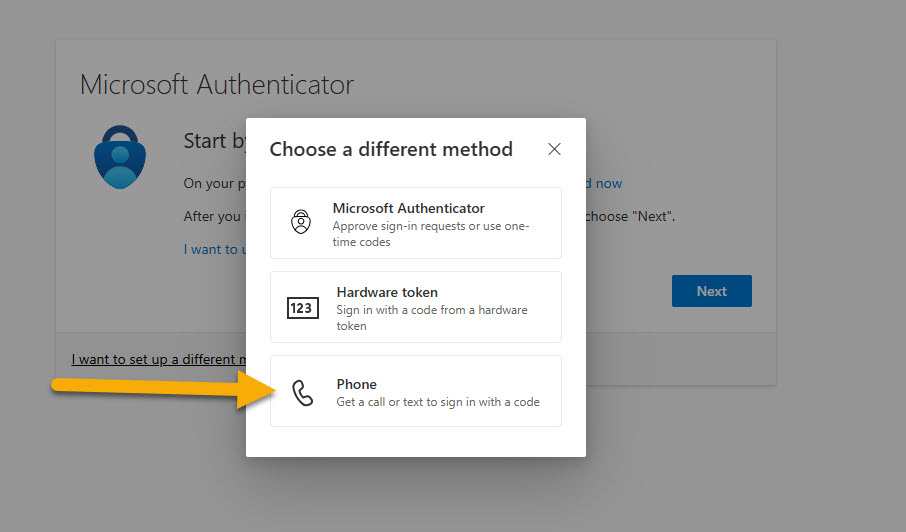
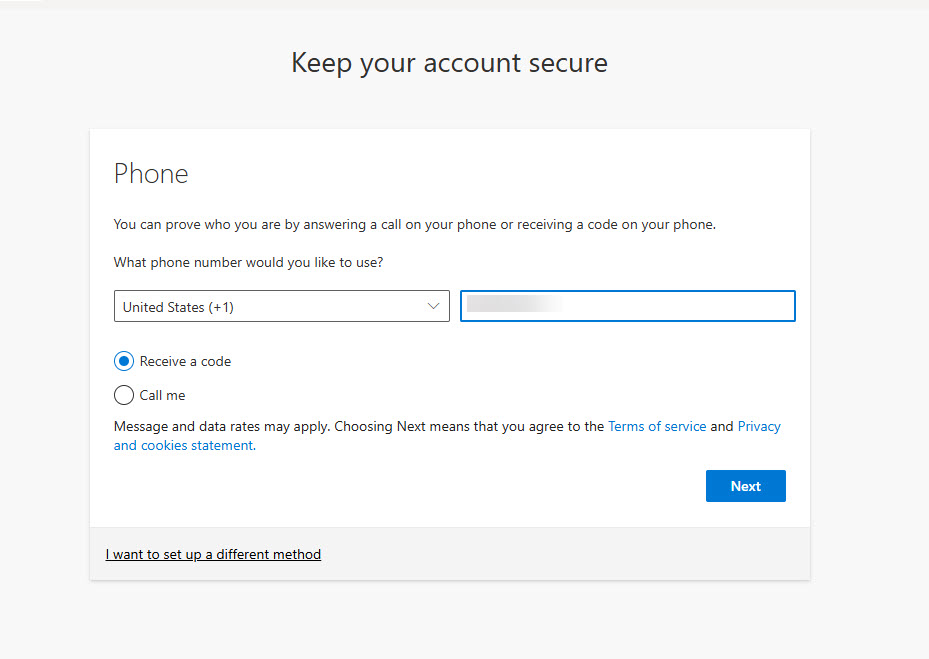
D. Enter your phone number and either select Receive a code or Call me. Click Next.
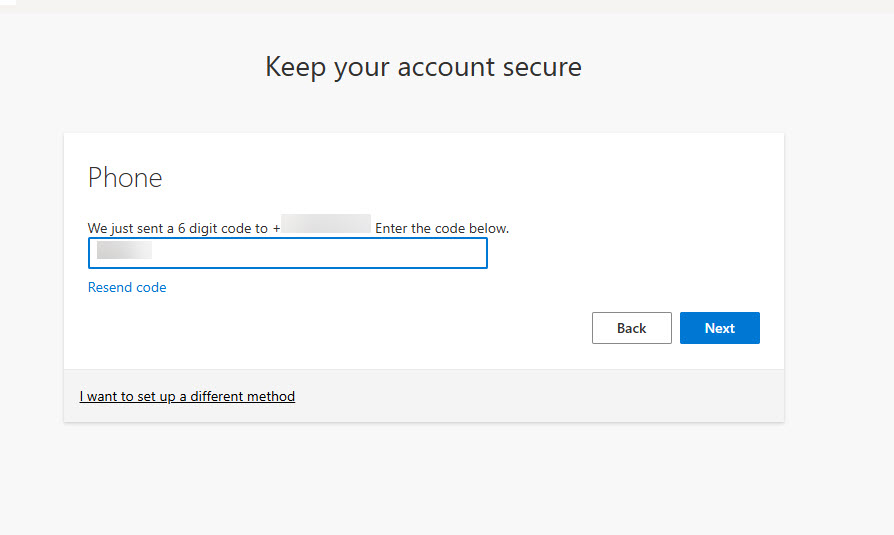
E. Enter the code that was sent to your phone. Press next.
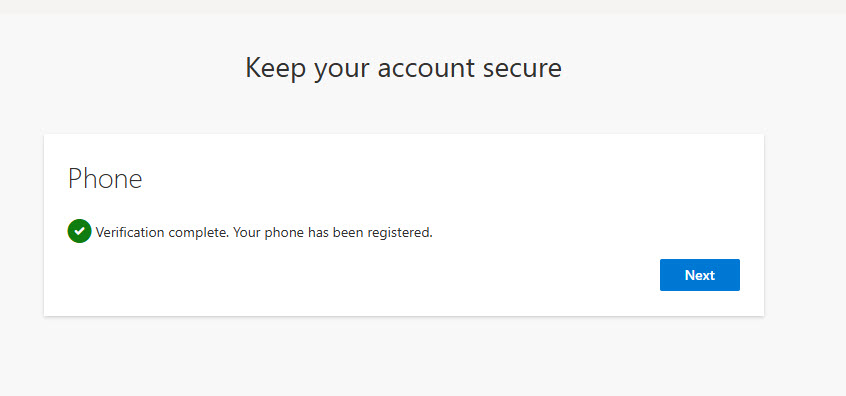
F. Once the registration is complete, you will receive a Verification complete message. Press Next.
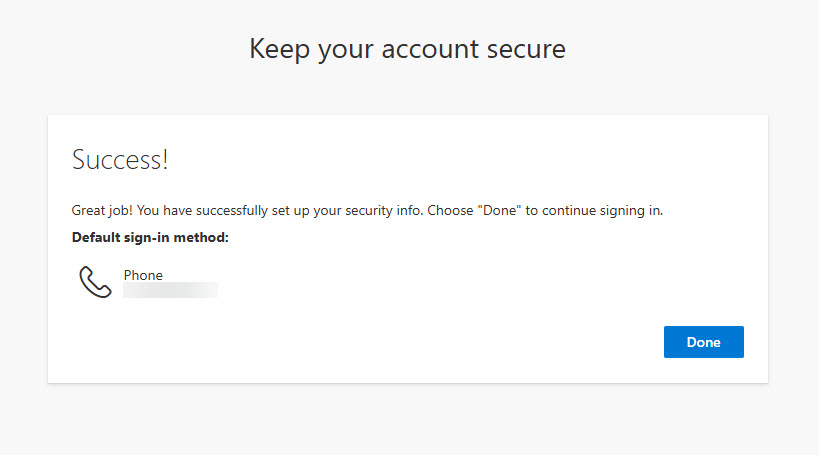
You will see your default authentication method, in this case, phone. Press Done to finish with multifactor authentication setup.
Step 3: Web App Access
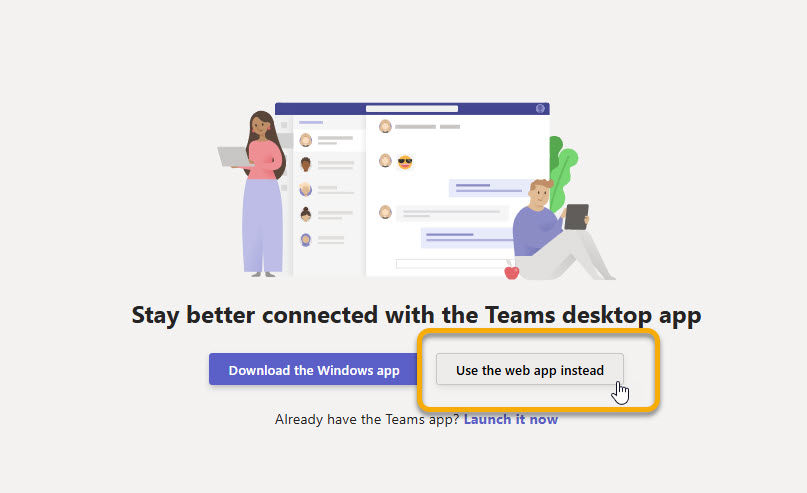
A. Teams will offer to open your access to the team via the Teams app. If it is your first time accessing your team, we recommend selecting Use web app instead.
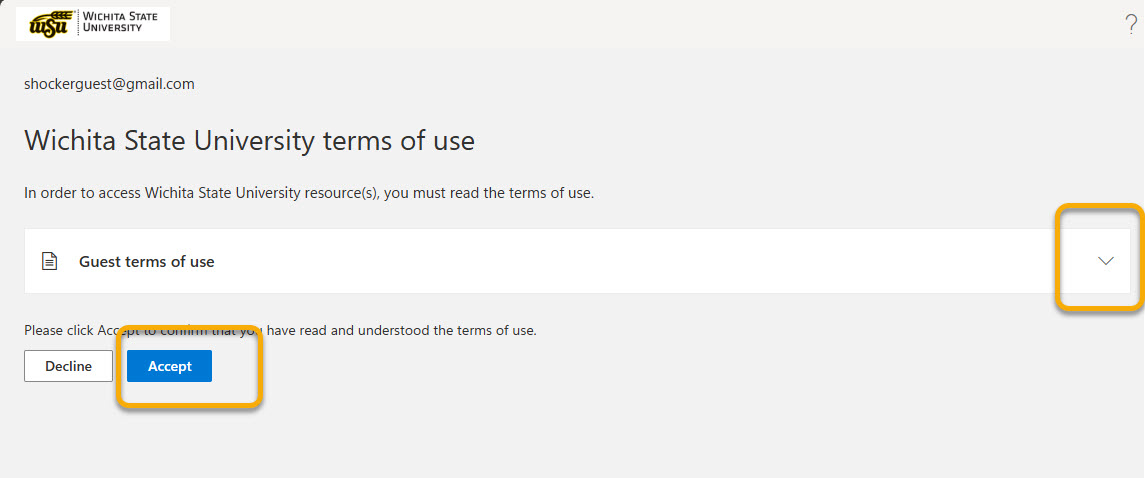
B. You will be taken to WSU's terms of use. Select the dropdown arrow to review the terms. If you accept the terms, click Accept.
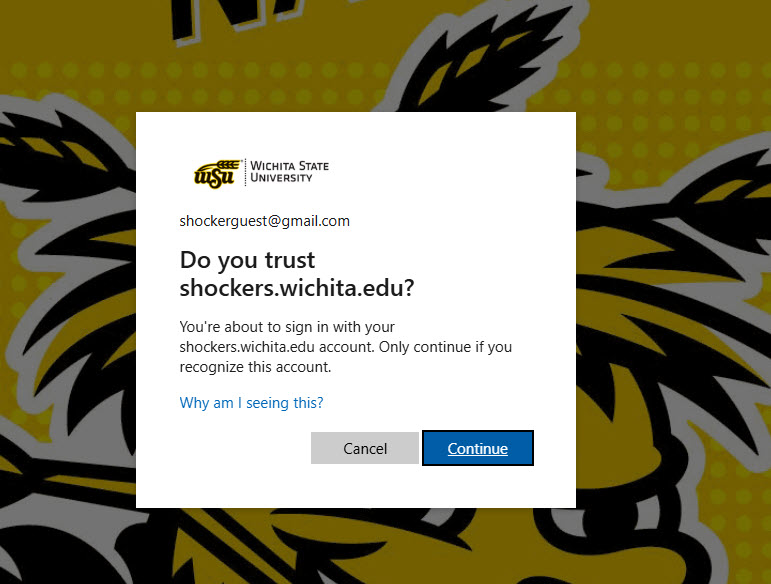
C. You may be prompted to confirm that you trust wichita.edu. Press Continue.
Going Forward: Day to Day Teams Access
You will not have to repeat all of the above steps each time you access this Team in the future. Day to day, you have a couple options:
- Browser Access: use the same link you received in your original email to access the Team in browser. If you use multiple Microsoft accounts (e.g. seperate work and personal accounts, it may help to continue using a private browsing window if you experience account access issues.
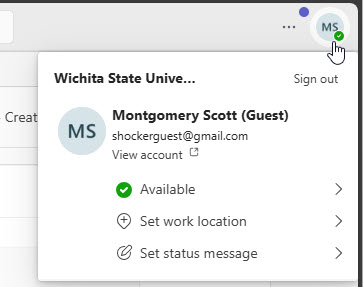
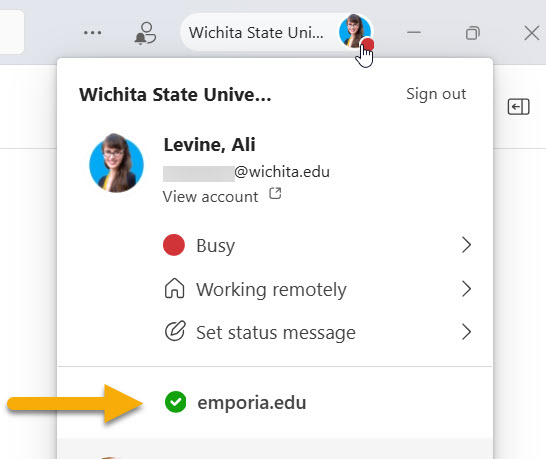
- Teams App: if the email that was added to the WSU Team is an email in which you are already active in Teams, click on your account information in the upper right and you will see the option to toggle between organizations. Below is an example with a guest of Emporia State.
Troubleshooting
General Advice
Remember to use a private browsing window when you are initially accepting your invitation to join your WSU Team.
Some examples of browsers with this option include: Edge, Chrome, and Safari
FAQs (more coming soon)
I did not receive an email.
- If you did not recieve an email invitation, check with the Team owner to confirm the spelling of your email address.
- Check your junk email folder and quarantine folder, if these are utilized in your organization.
I am logged into Teams, but do not see the WSU Team.
- Click on your initials or image in the upper right of Teams and confirm that this email is the one you requested be invited to the Team.
- While this side menu is popped out, check for wichita.edu listed as an org below the "status message" option.