


Wichita State University
Teams: Getting Started
Introduction
Teams is an amazing collaborative tool. This quick guide is intended to help you get
started on your journey with this powerful tool, and is by no means an exhaustive
resource. Stay tuned for training sessions coming soon.
Download Teams
If Teams is not currently on your computer, you can download it from Office 365 here:
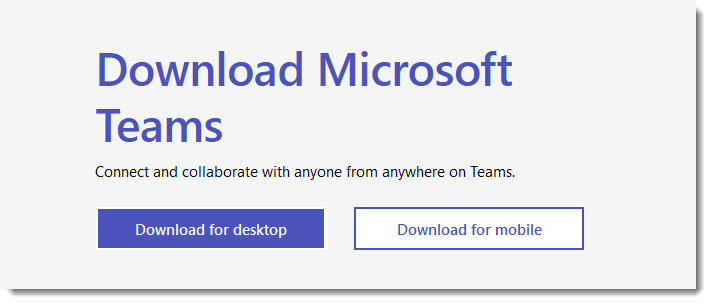
Select Download for Desktop, and follow the prompts to install the application.
Launch Teams
The first time you launch the newly-downloaded Teams app, you will be prompted to log in.
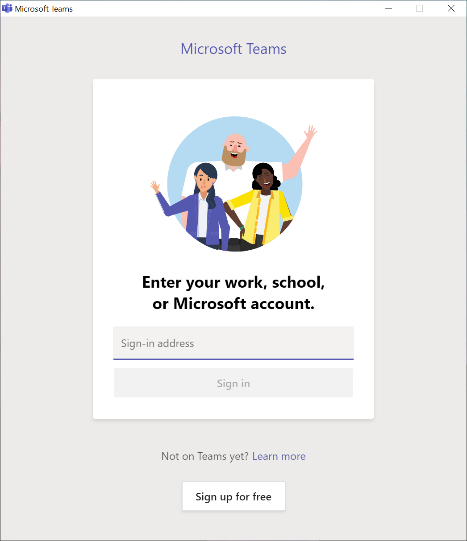
Log in using the same credentials as you did with the Microsoft 365 site:
- Username: your myWSUID@wichita.edu (e.g. A123Z987@wichita.edu)
- Password: Your existing myWSU password
You may be prompted to log in one more time and/or authenticate with Duo.
Navigation
On the left side of the Teams screen is some basic navigation.
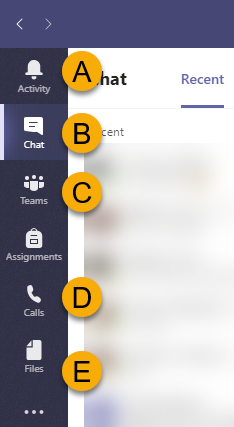
A. Activity: this will light up with a notification if you have received a message, file, or call.
B. Chat: Select this to begin a chat
C. Teams: This feature may not be enabled for your account yet at WSU. Stay tuned for more information about this feature.
D. Calls: Place an audio or video call
E. Files: Access files in your OneDrive. Not familiar with OneDrive? Here is a brief introduction.
Are you ready to do more?
- For Teams guides and more information visit the Teams Hub
- For more information on the basics of creating a Team, visit: The Basics of Creating a Team
- Training available for Faculty and Staff! Visit myTraining via myWSU and search for
Teams Essentials and Teams Advanced for Team Owners.