Wichita State University
WSU Reporting
This software contains reports that pull information from WSU Administrative Software into easy to access and read reports.
- Chrome and Edge are the preferred web browsers for WSU Reporting, but Firefox and Safari will also work.
- All report types including Finance, Student, HR/Payroll, and ePAF Reports are accessed through WSU Reporting.
Using VPN is required when accessing WSU Reporting off campus.
Beginning 10/5/2020, Duo Authentication will be required for WSU Reporting Access. Select a Duo Authentication method to log in and authenticate on your default device.
How to Log In
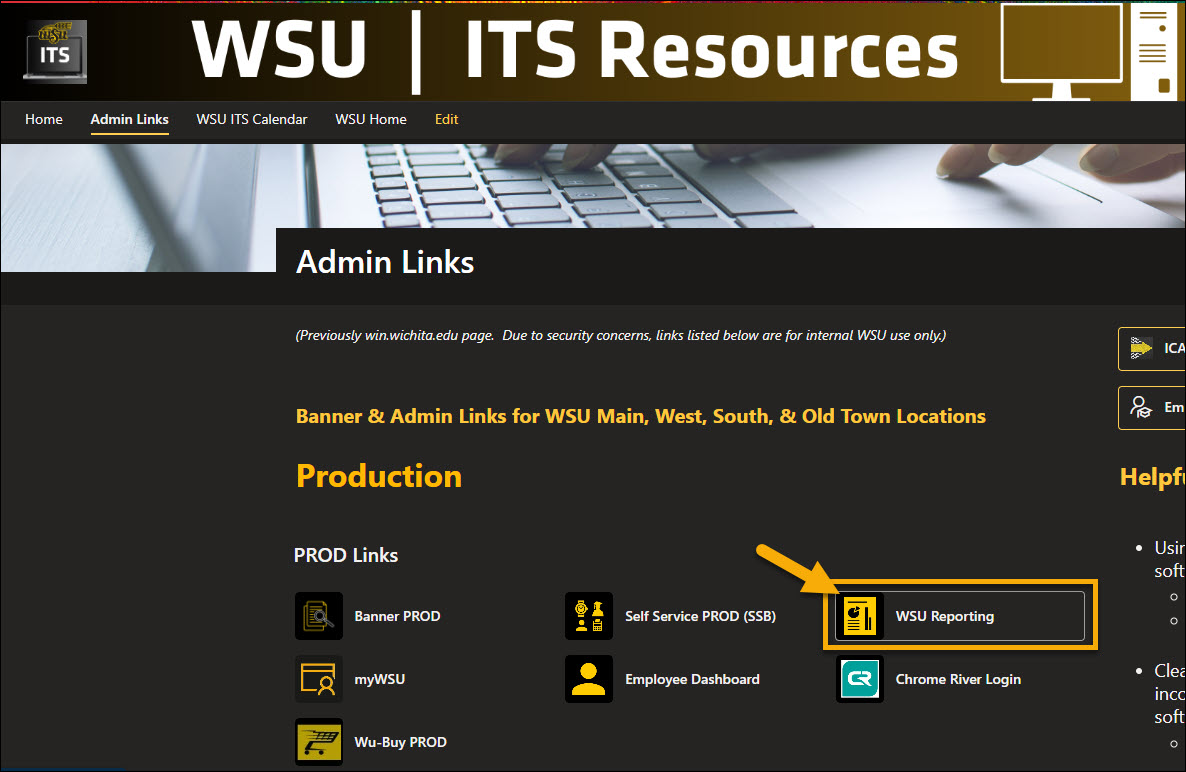
To log into WSU Reporting, go to the WSU Admin Links page and click WSU Reporting under PROD Links:
Logging In
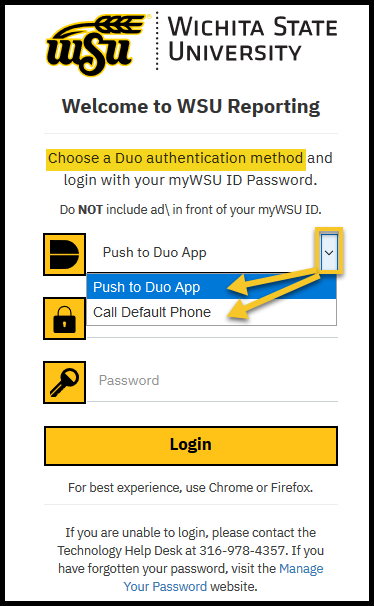
1. Using the drop down arrow, Select between Push to Duo App or Call Default Phone to authenticate to your default device.
2. Enter your myWSU ID and current myWSU Password.
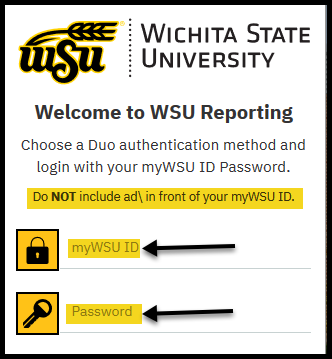
4. Select the Login button.
5. Check your DUO device to authenticate.
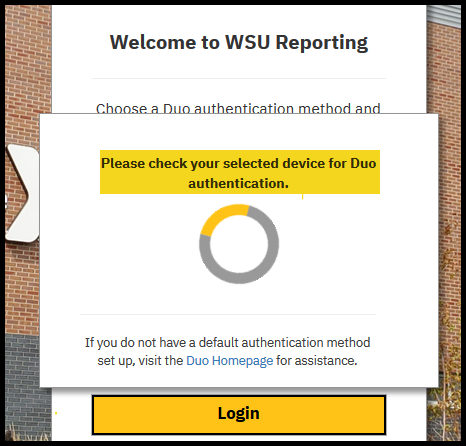
After authentication, you will be prompted to the WSU Reporting home page.
- Please contact the Help Desk at (316) 978- HELP if you need assistance.
- For information on how to set up or change your default DUO authentication device please visit the DUO Homepage: wichita.edu/DUO
Overview
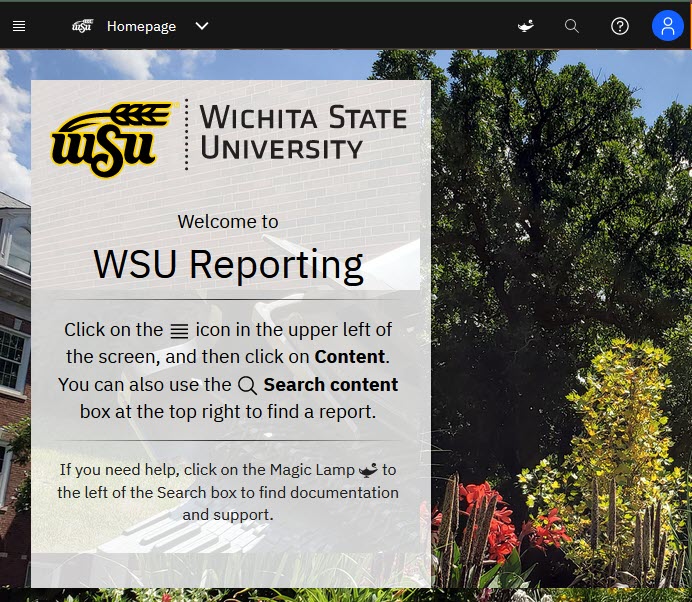
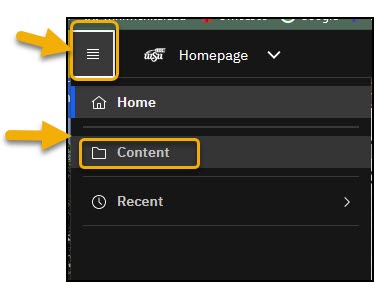
1. Click on the open menu icon in the upper left of the screen, then click on Content.
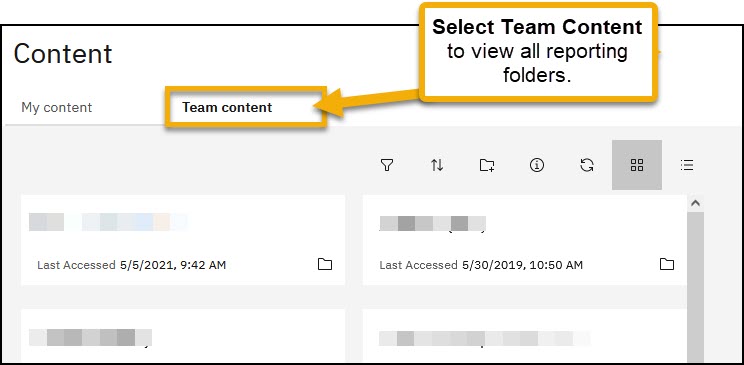
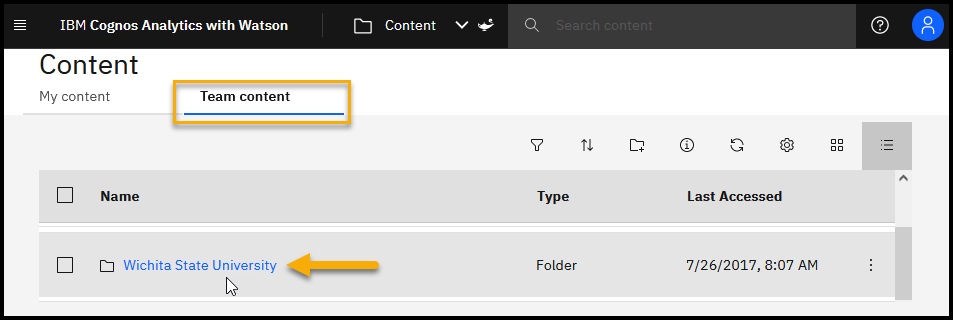
2.When you log in for the first time, it will automatically default you to My Content. To view all reports click on Team Content.
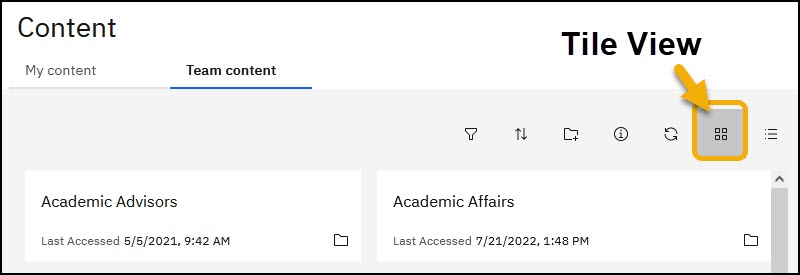
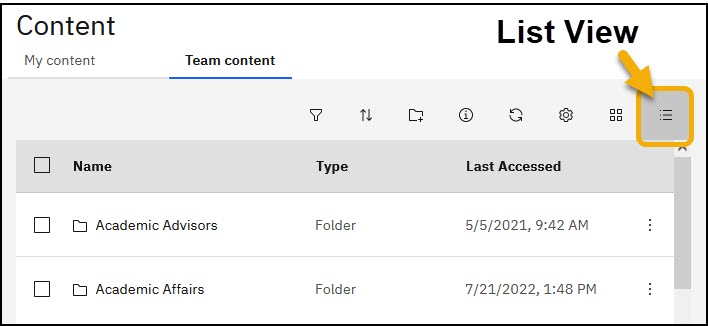
3. You can select Tiles View or List View as your preference. Once selected, your preference will automatically be saved within that browser.
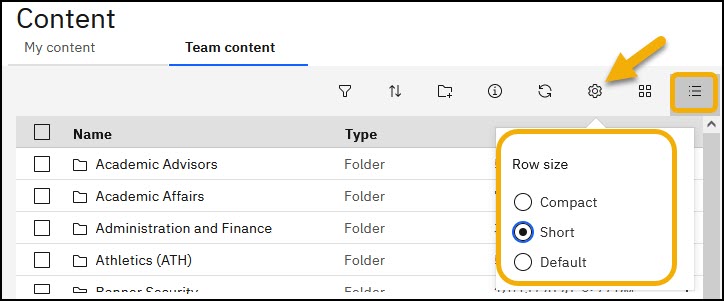
4. If you select List View you have the option to change your row size. While in List View, row size can be adjusted by selecting the Gear icon.
Your row size options are Compact, Short and Default.
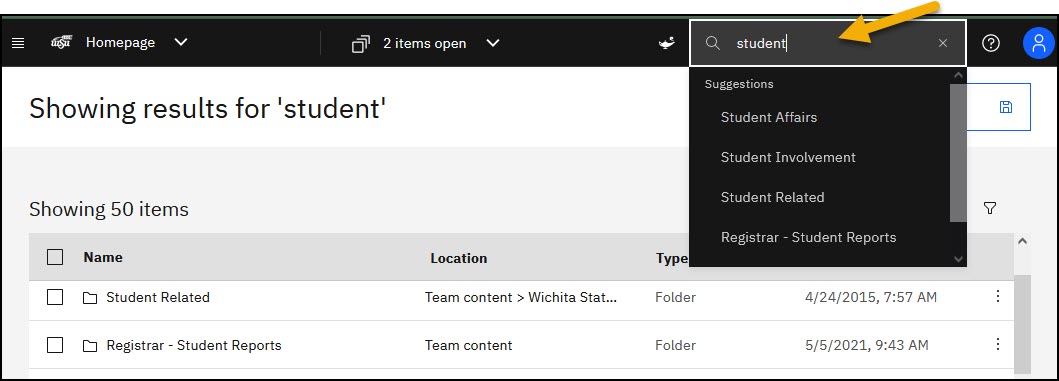
5. The Search bar is located at the top of the screen next to the Magic Lamp. You can search for reports by name or any part of the report name. Suggestions will appear based on your access.
To Find a Report
To find a report:
- Click on Team Content
- Select the Folder Containing the Report
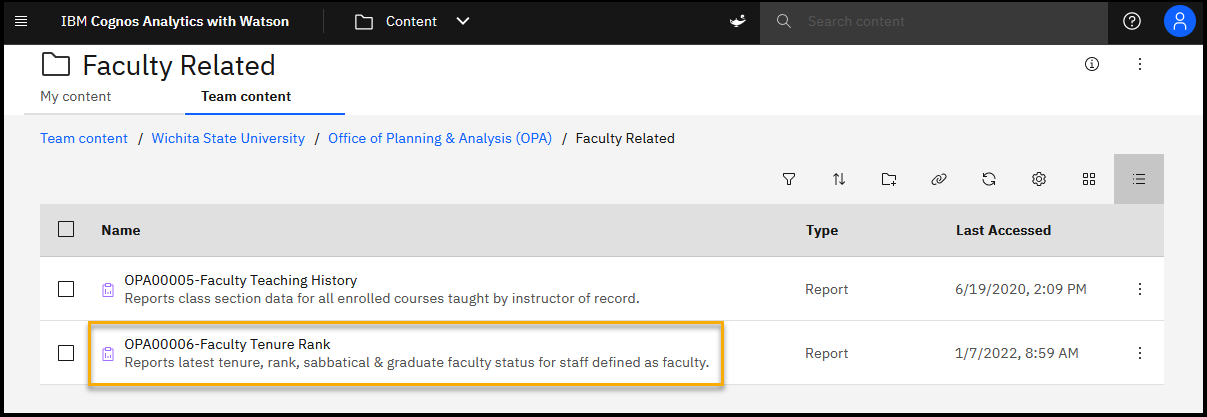
3. Select the Report.
To Run a Report
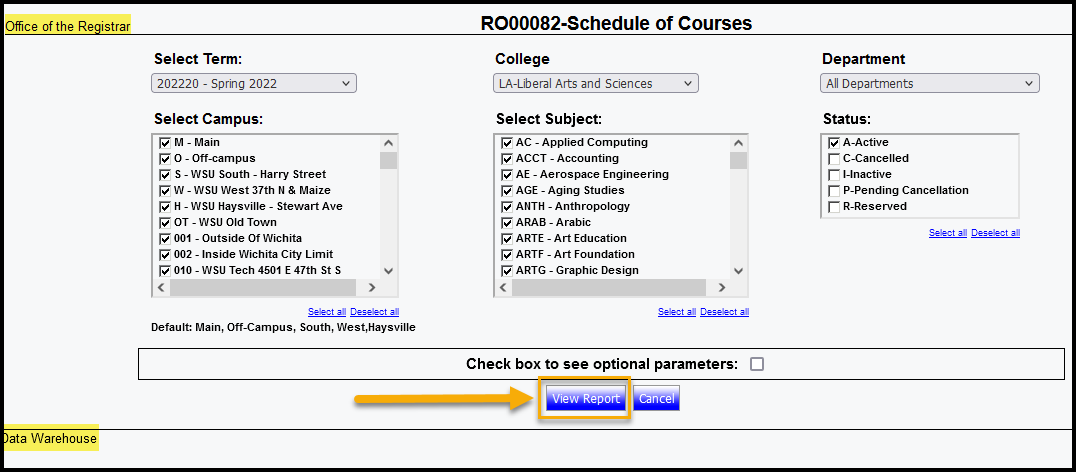
- Enter Filter Requirements based on information requested
- Click View Report
- Information is pulled from 3 major data sources:
- Banner Production (Live Data)
- Overnight Refresh:
- Data Warehouse
- Business Intelligence Predictive Model (BIPM)
- Questions regarding the information on the report, contact the office listed in the upper left of the report.
- Information is pulled from 3 major data sources:
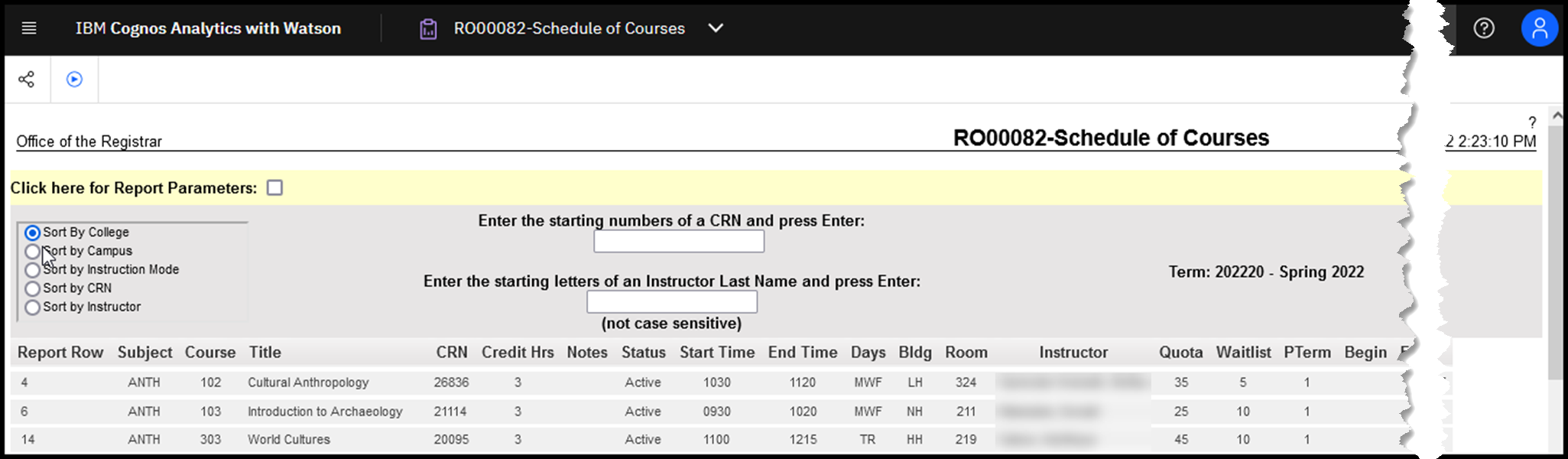
3. Report can be viewed.
To Export a Report
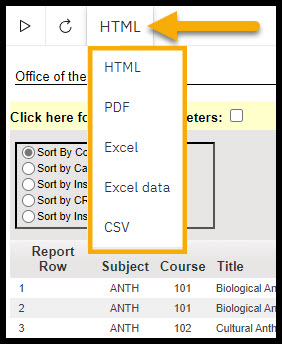
Reports can be exported into other formats.
To export a report:
- Click on the Report Format in the upper left of the report. HTML is the default web report format.
- Select the desired export format from the dropdown menu.
Tips and Tricks
Switch Between Multiple Reports
WSU Reporting will allow multiple reports to be open at the same time.
To quickly switch between open reports:
- Click the drop down arrow by the report name at the top of the screen.
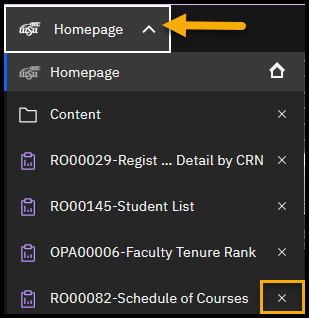
- Select from the reports listed.
- Click the X icon to the right of the listed report to close.
Recently Viewed Reports
WSU Reporting keeps a list of the reports that you have recently accessed in prevous sessions.
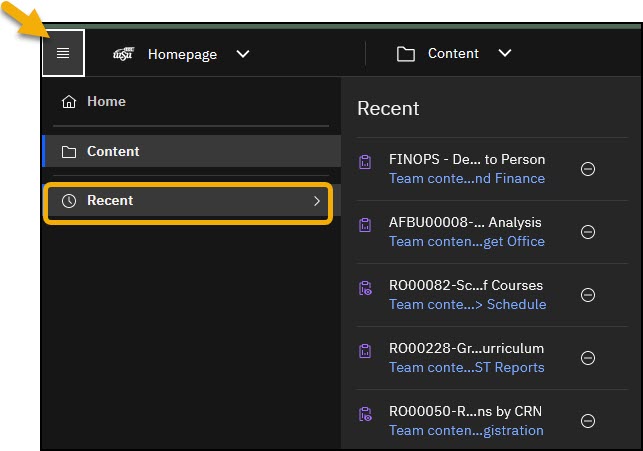
To view and select a recently opened report:
- Click on the Recent option in the left menu bar and select from the reports listed.
My Content Folder
Users can create a list of shortcuts to frequently used reports in the My Content folder.
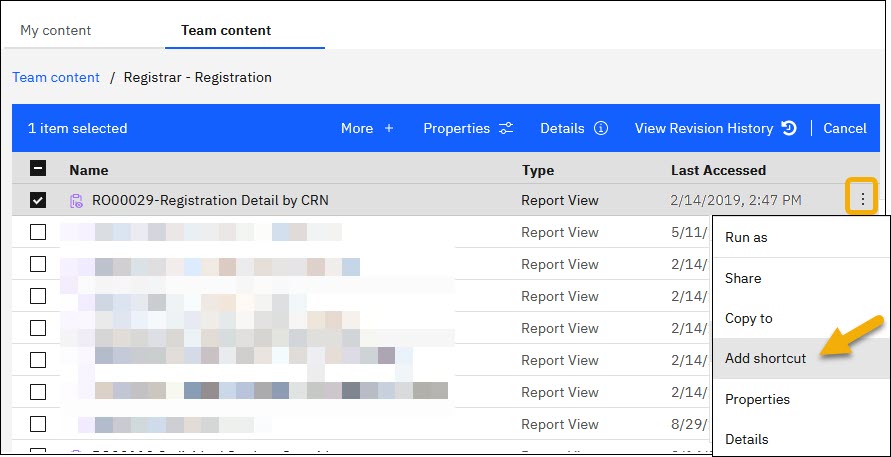
To add a Shortcut to the My Content Folder:
- Click on the Action Menu (3 dots) right of the report name. Shortcuts to entire report folders can also be created.
- Click Add Shortcut.
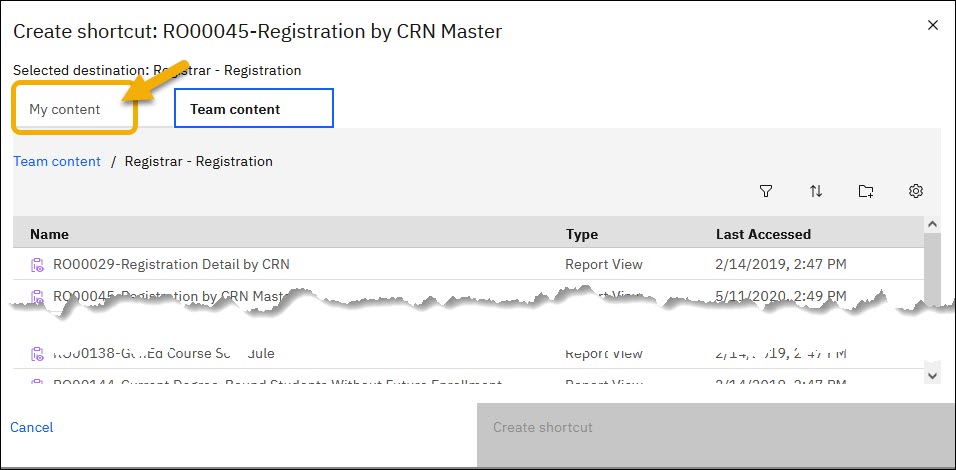
3. Select My Content as the destination.
4. Click Create shortcut.
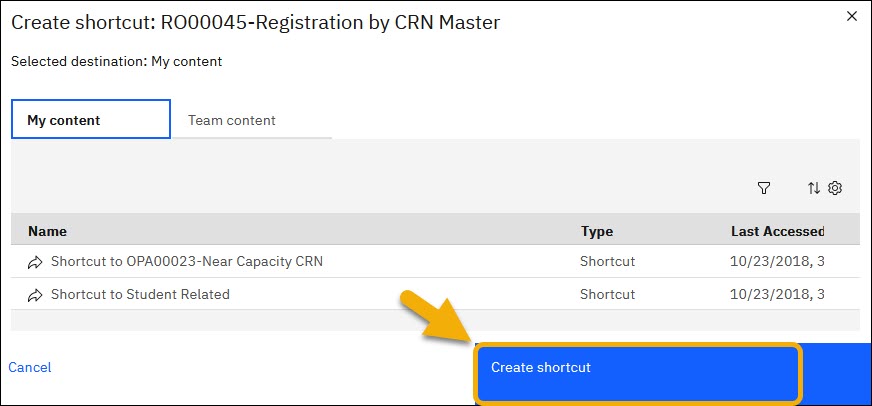
5. A shortcut to the report or folder will be listed in the My Content folder.