


Wichita State University
Helpful Links

Additional Resources:

What is Banner?
Banner is an administrative software application developed specifically for higher education institutions by ELLUCIAN. Banner maintains student, faculty, alumni, finance, financial aid, and personnel data. Banner works with other software like WSU Reporting and Banner Self-Service to submit and retrieve information.
Self-Service
Self-Service consists of specific Banner forms in a web-based environment used by WSU faculty, staff, and students (e.g. Student Registration, Employee Dashboard, etc.).
Preferred Browsers
Banner 9 can be accessed with a PC or Mac using the most current version of any web browser including: Chrome, Firefox, Microsoft Edge, and Safari.
- Chrome is the preferred browser for Banner 9
Clearing Browser History/Cache
A web browser maintains a history of all websites accessed. It also keeps copies of files and websites.
- Sometimes clearing of cache will allow the browser to work more efficiently. Oftentimes it will also resolve problems.
- It is recommended that Banner users clear their cache and browsing history at least once a week. See Clear Browser History & Private or Incognito Mode for more information.
Banner Navigation
Banner Querying
Queries are performed from inquiry, query and many application forms. They are simply a tool used to retrieve a subset of records stored in the database. See below for query tips and information.
Query Tips
As a general rule, an item is searchable on the query form if the cursor can be placed in the column.
Most pages have query options > Click the Look Up icon on the field to query

Capitalization matters. Most query forms are case sensitive. Be sure to capitalize the first letter, ex: Smith
Multiple column searches are used to refine the results.
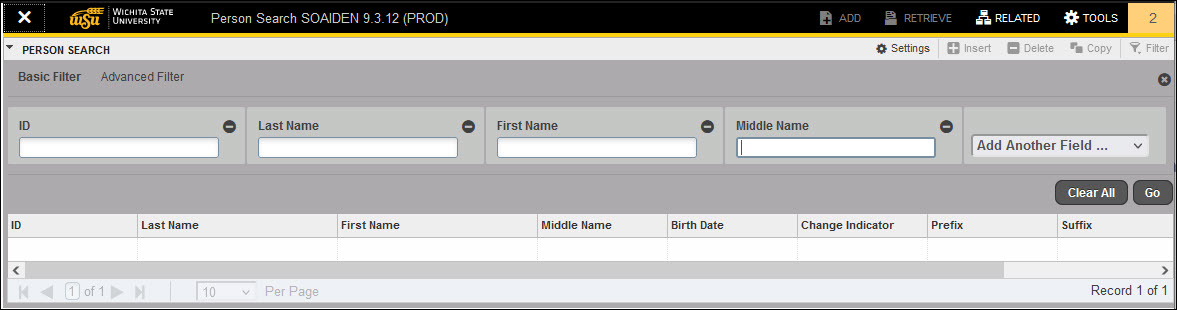
Multiple filters are also used to refine the results.
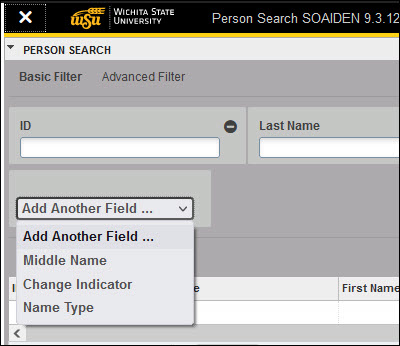
Select a Record – There are different ways to select a record from the query page and return it to the calling page.
- Double click in the first column of the record (row) to select.
or
- Select the record and click select in the lower right of the page.
Wildcards
Wildcards are used to query the database when an exact search match is not known.
- % (Percent Sign): Any number of unspecified characters
- _ (Underline): One occurrence of an unspecified character
| Search Criteria | Will Return: |
| Lock% | Starting with: Lock |
| %ocke% | Contains: ocke |
| %ckes | Ending with: ckes |
| _o% | With a second letter: o |
Query Commands
Most common query keyboard commands
| Key | Menu | Description |
| F8 | Query Execute | Execute the query is used to search existing records in the database on some Banner forms. |
| Double Click | File Select | Select a record from the query form and return it to calling form. Cursor in the first column of record. |
| ALT + Pg Down | Block Next | Next Section or Previous Section is used to execute the query on other forms. |
| Scroll or Pg Down |
Query Fetch Next Set |
Displays the next set of retrieved records. |
| F7 | Query Last Criteria | Recalls the search criteria from the last successful query. |
| Ctrl + Q | Cancel | Cancels the query and takes the form out of query |
Date Searches
Date searches require special attention.
- The date format must be DDMMMYYYY where MMM is entered in three alpha characters.
- When searching for a year, an ending wildcard is sometimes required (2018%)
- Specify all four digits for a year when entering for a date.
| Search Criteria | Examples | Will Return Records Containing |
| 22%2021 | 22%21 | All months in 2021 on the 22nd day |
| %2021 | %21 | All days in 2021 |
| %MAR-2021 | %MAR%21 | All days in March, 2021 |
| 22-MAR% | March 22nd all years | |
| 22-MAR-2021 | 22MAR2021 | March 22,2021 |
Calendar Navigation
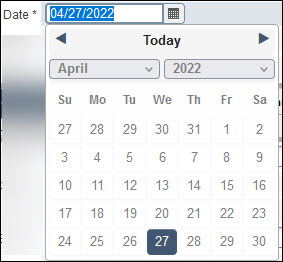
To navigate the calendar:
- Arrows to navigate the months
- Click Today to return today’s date
- Drop down arrows to change month or year
- Click on the date to select
Number Searches
There are a limited number of options available when searching for numbers. Numeric operators are not permitted when querying dates.
| Function | Operator |
| = | Equal to |
| <> | Not equal to |
| > | Greater than |
| < | Less than |
| >= | Greater than or equal to |
| <= | Less than or equal to |
Terminology
Banner Naming Conventions
The seven-letter naming convention used throughout the Banner Administrative Applications help you to remember page or form names more readily. The unique seven character names of Banner object forms, reports, jobs and tables are assigned according to a set of conventions. Each name is built from the same four components:
- Position 1: Identifies the primary system owning the form, report, process or table. In the example below, the G denotes General System.
- Position 2: Identifies the module owning the form, report, process or table. In the example below, the U denotes that is it a Utility Module.
- Position 3: Identifies the type of form. In the example below, the A denotes that it is an Application object type.
- Positions 4-7: Identifies a unique four-character name for the form. In the example below, GUAPMNU is a personal menu form, so the PMNU stands for personal menu.
| Position 1 | Position 2 | Position 3 | Position 4 | Position 5 | Position 6 | Position 7 |