Wichita State University
Callout snippet

Optional credit
Option to link in header, optional image, optional formatted paragraph text with inline links, and optional buttons. Recommend limiting to 25 words or fewer for usability (but not imposing in the CMS).
Page title, headings (H2 header)
Your page title is the part of this page above the photo that says "Standard Page Snippet." The page title is automatically set to H1. Title and heading can be adjusted in the Parameters portion of the Properties section on a checked-out page.
Paragraph styles are used to break up text so users can scan the page. Use provided paragraph styles instead of bold / italics / HTML and in correct priority order to make sure text is accessible for screen readers. Aim to place a heading every 100-150 words. Priority order - paragraph styles should always run as follows: H1, H2, H3, H4.
Hero photos are optional and can be changed in the Multiedit portion of the Properties section on a checked-out page.
Text styles (H3 header)
Text paragraphs can include all your regular text styles, including strong / bold and emphasis / italics. Keyboard shortcuts work for styling text. Ctrl + B for bold, Ctrl + I for italics. Mac users will substitute the Ctrl key for the command key.
Avoid using these styles to call attention to paragraph text. Use a callout component instead for important messages.
Italic: Denote publication titles, terms in foreign languages, emphasize a portion of a sentence in running text, quotations in running text
Bold: Emphasize a word or two in running text (use sparingly)
Underline: Use when a style guide specifically calls for it (e.g. some citations)
Ordered, unordered and nesting lists (H4 header)
Numerical and bulleted lists are also available for styling body text:
- Item one
- Item two
- Item three
Or perhaps you prefer a bulleted list:
- Bullet one
- Sub bullet. To adjust, use the increase / decrease indent buttons in the WYSIWYG toolbar.
- Bullet two
- Bullet three
Media Caption: Full-width image. Option to include a caption/credit. Recommend limiting
to 50 words.Optional credit
H5 header
Continuing the logical header cascade with an H5 heading here in the body text of the main content area. We will switch over to the additional content area further down the page.
H6 header
Our last sub head is the H6. Text should always have the logical cascade for paragraph style. Adhere to this order for accessibility purposes. If you want to style text differently, utilize the Styles dropdown in the WYSIWYG toolbar.
Block quote style. For multi-paragraph quoted text. Available in WYSIWYG toolbar and as the Body Block Quote snippet. Use to call attention to quotes and break up running text.
Primary Call to Action (CTA) Button Styles
To apply a special button style to a link, right click the linked text, select Insert / Edit Link. The Insert Link dialog box will appear. Use the Class dropdown menu to assign a style and click Save to finish.
Text Link Hover Style
Hover over this inline linked text to see how it appears when hovered over with a mouse.
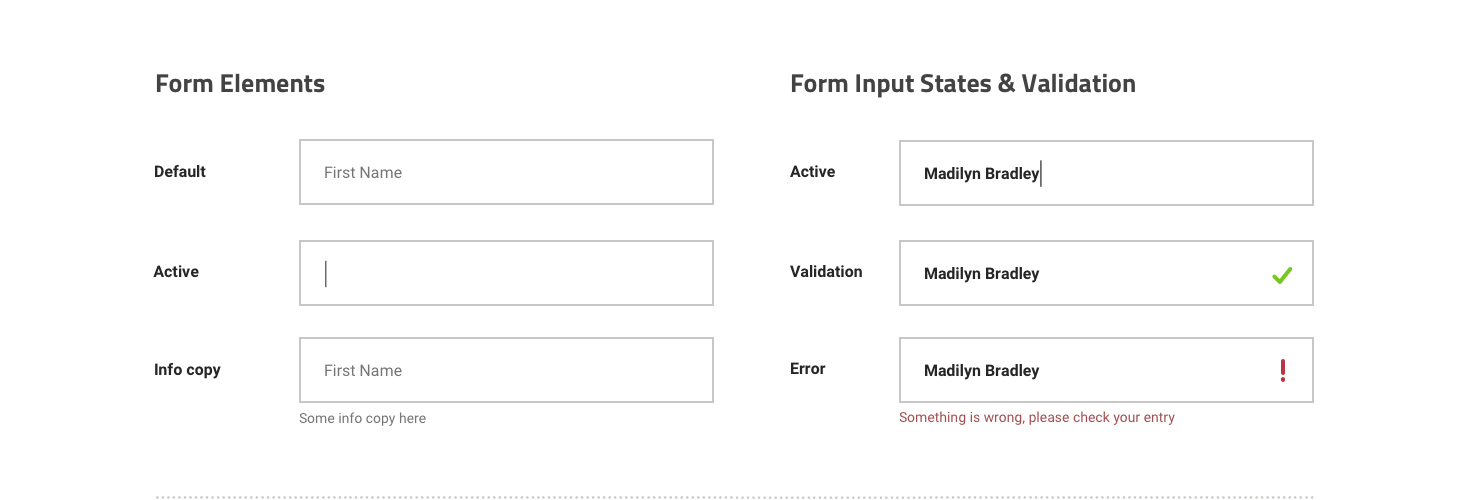
Forms
Accordion
Use only for content that applies to distinct audiences or situations, so users can open the one that's relevant to them. Don't use just to shorten long pages - users have to click open each one: in that case, use subheading styles instead. Use the Paragraph dropdown menu in the WYSIWYG toolbar to add an optional title to your Accordion snippet.
Section Column Teaser
Landing teaser columned
Optional Tag
This is the default style for this snippet. Formatted paragraph text (up to 55 words) allows for inline links. Image can be floated left or right. Use this space to draw attention to a new development in your college / department or to highlight breaking news or a top story.
Optional supporting text
Landing teaser columned
Optional tag
This is the slab style for this snippet. Formatted paragraph text (up to 55 words) allows for inline links. Image can be floated left or right. Background color is customizable, though default/none or light is recommended.
Teaser Card (Horizontal or Vertical)
Features:
-
- In page editor, the topmost image in the table is the background image, which will be ghosted behind the photos and content that come after.
- Headline up to 35 characters.
- Main images are "small" 4:3 ratio (800px by 600px; 3MB limit).
- In mobile, the image will be full screen.
- Linked labels up to 55 characters each.
- To create additional boxes, right click (option click) on the last row and choose "Copy row" from the Row submenu. Then right click again and choose "Paste Row After" from the same submenu. Then change the image and information.
Quicklink Button Bar
-
- Headline up to 55 characters.
- Buttons. Up to 3. Each button added decreases conversion rate of others.
- Allows different background styles, arrows and overlaps.
Snippet: Section Landing Standalone Image
Features:
-
- Intended to be used as an atmospheric full-width feature photo to break up sections.
- If a photo credit or caption is required, use "Media with Caption" snippet instead.
- Image is a "medium" 4:3 ratio (1400px by 1050px; 3MB limit).
- In mobile, the image will scale or crop depending on the screen width of the device.
- Keep the focal point of the photo in the middle third to preserve meaning.
- Intended to be used as an atmospheric full-width feature photo to break up sections.