


Wichita State University
List of Contents:
Scrolling and Navigation
Avaya Menu
Answering and making a call
Answering a call
Making a call
Making a call using edit dialing
Putting a call on hold
Transferring a call
Conference calls
Setting up a conference call
Adding a person on hold to a conference call
Dropping a person from a conference call
About Features
Accessing the Feature menu
Send All Calls
Contacts
Searching for a contact
Calling a person form the contacts list
Adding a new contact
Editing a contact
Call History
Calling a person from call history
Adding an entry from the call history to your contacts list
Changing the display language
Using USB Flash Drives with your phone
For more information
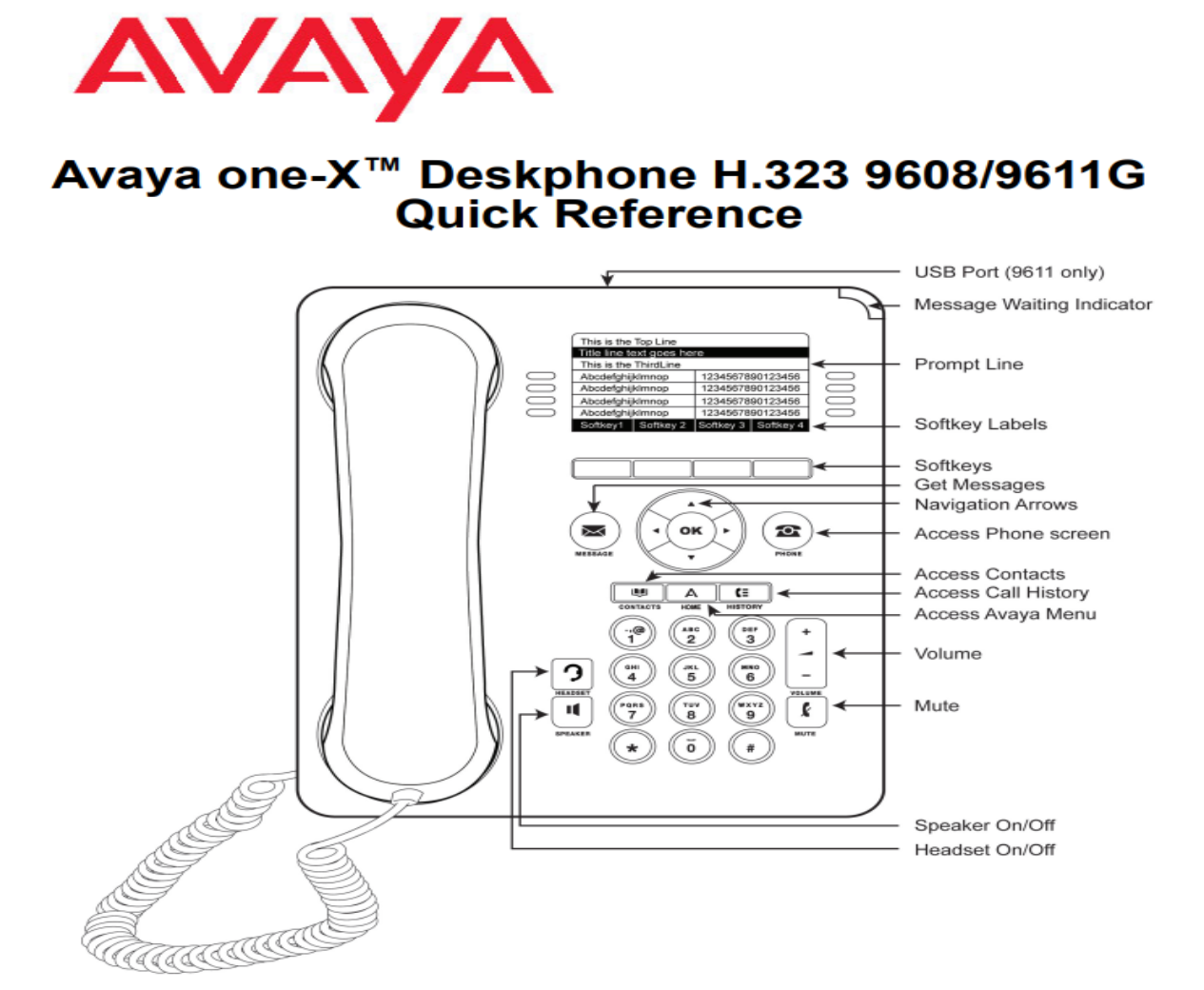
Scrolling and Navigation:
A navigation icon appears in the phone display to indicate that you can scroll to more options or information. Use the right and left navigation arrows to go to others screens when the paging icon (left- and right-facing arrows) displays on the Title Line or to move the cursor right or left when entering text.
The softkey labels will change according to the options available for the selected line. The OK button is a shortcut for the default action. For example, when you select an entry in your contacts list, pressing the OK button places a call to the person.
Go back to List of Contents
Avaya Menu:
You can use the Avaya Menu to adjust and customize options and settings for your telephone, access additional Web-based applications, get information about your phone and network settings, and log out. When you press the Home button, you see one of the following menus, depending on how your administrator has set up your system and on the applications available to you:
| Sample Menu 1 | Sample Menu 2 |
| Options & Settings | Your 1st Web Application |
| Browser | Phone Settings |
| Network Information | Log Out |
| Guest Login | About Avaya one-X |
| Log Out | My Pictures |
| About Avaya one-X |
Options & Settings or Phone Settings, if your menu is customized, lets you change your call settings, personalize button labels, adjust brightness and contrast, select your ringing pattern, and more. See Options & Settings for more information.
The Browser menu contains additional web-based applications. (If no web applications are available for your phone, the Browser menu is not shown.)
Network Information shows a summary of network-related parameters for your phone and provides diagnostic information. See Viewing Network Information for information. If your administrator has set up Web Applications, this option appears under the Phone settings menu instead.
About Avaya one-X provides the release number of your telephone software.
guest Login lets you log in to a phone to which you are not normally assigned, to access your own contacts and features.
Log Out lets you sign off the phone, to protect your settings or to allow another user to log in. Log out does not display unless your phone (and any associated button module) is in an idle state.
My Pictures lets you uses pictures from a USB device as your telephone screensaver, but is only available on those desk phones with a USB interface.
Go back to List of Contents
Answering and making a call:
Answering a call
Answering an incoming call in one of the following ways:
- If you are not on another call, lift the handset, or press Speaker to answer using the speakerphone, or press Headset to answer using the headset.
- If you are on another call and the telephone does not automatically display the incoming call, from the Phone screen scroll to the line with the incoming call and press Answer or OK. If you are on another call and the telephone does automatically display the incoming call, you can press Ans Hold to automatically put the first call on Hold when you answer the new call. Alternately, you can press Ans Drop to automatically drop the first call when you answer the new call.
Making a call
- Lift the handset, or press Speaker or Headset (if applicable) or a line button for an available line.
- dial the number you want to call.
Making a call using edit dialing
Edit dialing works just like making a call on your cell phone - just start entering the number without hearing a dial tone. Using the Bksp softkey, you can backspace to "edit" the number before actually dialing it.
Putting a call on hold
- Press Phone to view the main Phone screen, if necessary.
- If oyu are not active on the line you want to put on hold, select that line.
- Press Hold.
- Press Resume or the line button of the held call to retrieve the call.
Transferring a call
- From the Phone screen, if the call to be transferred is not already active (highlighted), select the line on which the call to be transferred appears.
- Press Transfer.
- Dial the telephone number, or call the person from the Contact list, or call the person from the History list.
- If unattended transfers have been administered, you can hang up now if you do not want to announce the call. Otherwise, press Complete or OK
Go back to List of Contents
Conference calls:
Setting up a conference call
- From the Phone screen, select your active call.
- Press Conf.
- Dial the telephone number, or call the person form the Contacts list, or call the person from the History list.
- When the person answers, press Join or OK to add the person to the existing call.
- Press Add and repeat these steps to add another person to the conference call.
- Press Drop at any time to drop the last person added to the conference call.
Adding a person on hold to a conference call
- From the phone screen, select your active call.
- Press Conf, or Add if you are already in a conference.
- Select the call on hold that you want to add to the conference.
- Press Resume to take the call off hold.
- Press Join to add the person to the conference call.
Dropping a person from a conference call
- From the Phone screen, select your active call.
- Press Details.
- Select the person you want to drop.
- Press Drop.
Go back to List of Contents
About Features:
Your administrator may also place selected features on softkeys on the call appearance (Phone) screen. For more information about what features and options are available for your extension, contact your system administrator.
Accessing the Features menu
- From the Phone screen, scroll right to access the Features menu.
- Scroll down to see the features that have been administered for your extension.
Send All Calls
- From the Phone screen, scroll right to access the Features menu.
- Select SendAllCalls.
- Press Select or OK to turn Send All Calls on or off.
Go back to List of Contents
Contacts:
*Note: If you press the Contacts button and nothing happens, your system administrator has disabled the button and its functionality.
Searching for a contact
- Press Contacts.
- Using the dialpad, start typing the names for which you want to search.
- Press Call to call the person or press More then Edit to edit contact information.
Calling a person from the contacts list
- Press the Contacts button.
- Select the person or primary number you want to call.
- Locate the contact you want by starting to type the person's name as it is listed.
- Press Call or OK.
Adding a new contact
- Press Contacts.
- Press New if this is your first contact list entry , or press More than New if you already have entries in your contact list.
- Enter the name using the dialpad.
- Select the next field.
- Enter the telephone number and press Primary if applicable.
- Select the next field.
- Select the type of number entered (general, work, mobile, home).
- If you have another number for this contact, scroll down and repeat Steps 5 - 7.
- Press Save or OK.
Editing a contact
- Press Contacts.
- Search for and select the contact you want to edit.
- Press More > Edit.
- Choose the field you want to edit.
- Use the dial pad and softkeys to make changes to the contact information.
- Press Save or OK.
Go back to List of Contents
Call History:
Calling a person from call history
- Press the History button.
- Scroll to the left or right to view a separate list of all, un-answered, answered, or outgoing calls.
- Scroll up or down to select the person or number you want to call.
- Select the person or number you want to call.
- Press the Call softkey or the OK button.
Adding an entry from the call history to your contacts list
- Press History.
- Select the number you wnat to add to your contacts list.
- Press +Contacts.
- Edit the name and telephone number, if necessary.
- Press Save.
Go back to List of Contents
Changing the display language:
- Press Home.
- Select Options & Settings or Phone Settings.
- Press Select or OK.
- Select Screen & Sound Options.
- Press Select or OK.
- Select language.
- Select a display language.
- Press Select or OK.
- Press Yes to confirm the selected language.
Go back to List of Contents
Using USB Flash Drives with your phone:
Subject to your adminnistrator's permission, if your telephone has a USB interface and you have a USB (Universal Serial Bus) flash drive (also called a thumb drive or memory stick), you can log into your phone form anywhere in the world, add contacts to your Contacts list form an E-mail or other PC software program, and display pictures from the device on your phone as a screensaver. You can also copy your contact list from your phone to a USB flash drive, replace the contents of your phone's current contact list with those on the USB flash drive, or temporarily use the flash drive's contacts instead of your phone's contact list.
*Note: USB Login: If you have automatic USB login capability, the only Contacts you can see are those on the USB device itslef. Note that when you use the USB login, the Log Out menu option is not available to you; teh only way you can log your phone out is by removing the USB device.
Go back to List of Contents
For more information:
Go to www.avaya.com/support for latest support information, including the user guide, administrator guide, installation and maintenance guide, interactive document, and software downloads.
Scroll back to top